How to Merge Two Photos in Gemini (Couple & Family Prompts)
How to merge two photos in Gemini: copy-paste couple, family, and pet prompts, plus fixes when the light or the faces look wrong.
Updated October 9, 2026 · AI Prompt Grid editorial
Quick answer: How to merge two photos in Gemini: attach both photos in one message, then paste a prompt that names each photo and keeps both faces exact. A merge two photos AI prompt like the ones below also works in ChatGPT if you number the images. Use them for a couple, a family, friends, or a pet.
Before you paste
- Open Gemini and check the model is not set to Flash-Lite. That option is not built for several reference photos.
- Attach both photos in the same message, in the order the prompt names: first photo, then second photo.
- Ask for one shared light so the people look photographed together.
- Check the faces first. If the light, the height, or a face is off, use a short follow-up in the same chat. The tips at the end are for that.
Similar light and a similar crop merge more easily than a close selfie plus a far full-length shot. Skip sunglasses and heavy beauty filters. Only merge photos of people who agree to it.
Couple merges
1. Riverside couple
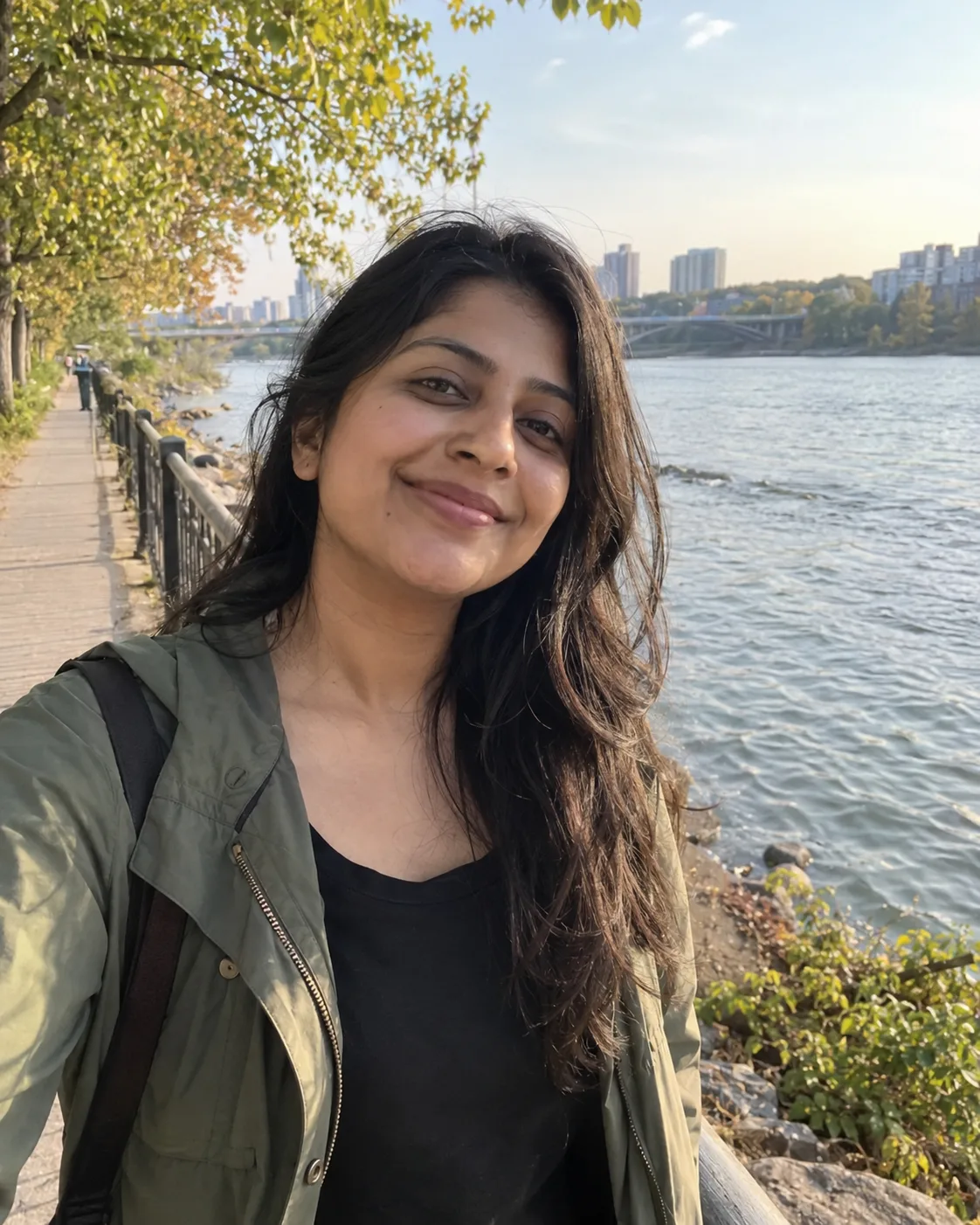
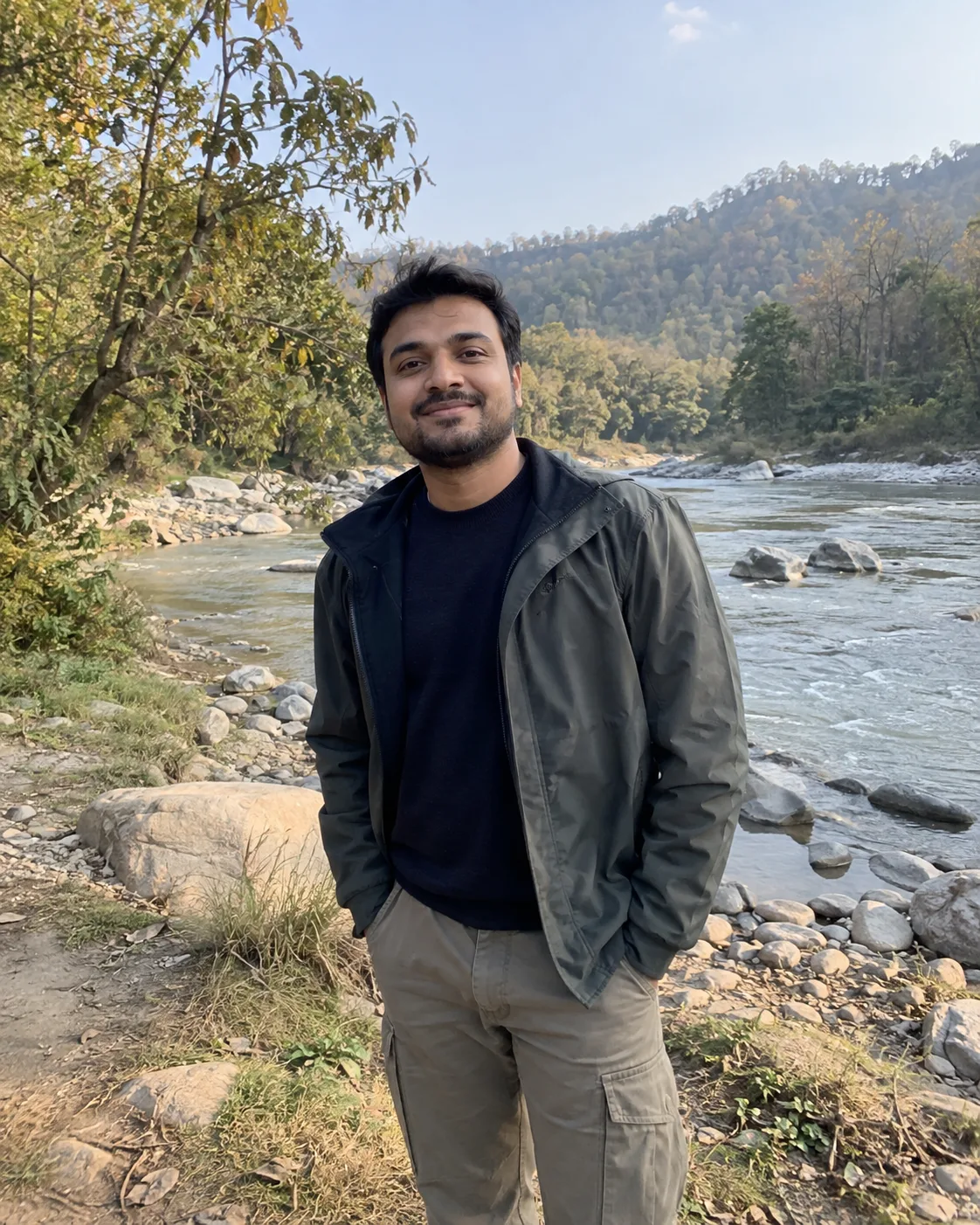
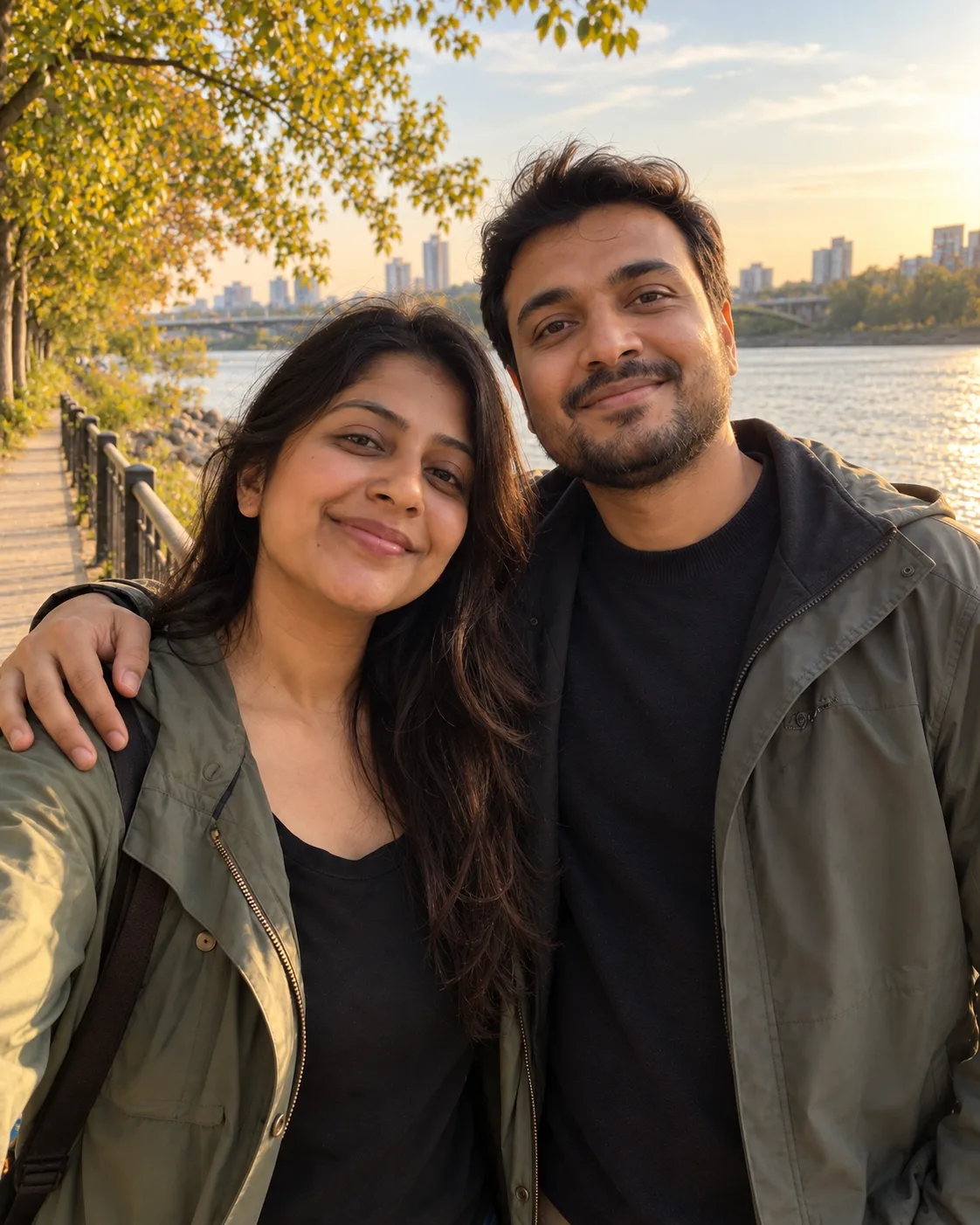
A couple photo merge AI prompt: two separate photos become one riverside walk, with one shared late-afternoon light.
Merge the first uploaded photo and the second uploaded photo into one natural group photo of a couple standing side by side. The first uploaded photo shows person A and the second uploaded photo shows person B. Follow the selected source-preservation settings: identities and facial features. Always keep person A's face shape, eyes, nose, lips, hairline, hair, any beard, glasses, or head covering, apparent age, and exact skin tone as in the first uploaded photo, and person B's exactly as in the second uploaded photo. Treat them as two separate people; do not blend, swap, beautify, slim, de-age, or lighten either face, and keep natural skin texture. Keep the outfit each person wears in their own photo. If group arrangement and pose are not preserved, stand them close together, one arm around the other's shoulder, both smiling at the camera, with realistic relative heights. Light both people with one warm, low sun from the left so they look photographed together, with matching shadows and color temperature. Apply luminous golden-hour warmth color grading. Replace the background with riverside promenade with a calm river, trees along the bank, and warm late-afternoon light, keeping clean edges around hair and clothing. Do not add extra people, text, lettering, or logos. Compose for 4:5 Portrait without cropping either face.
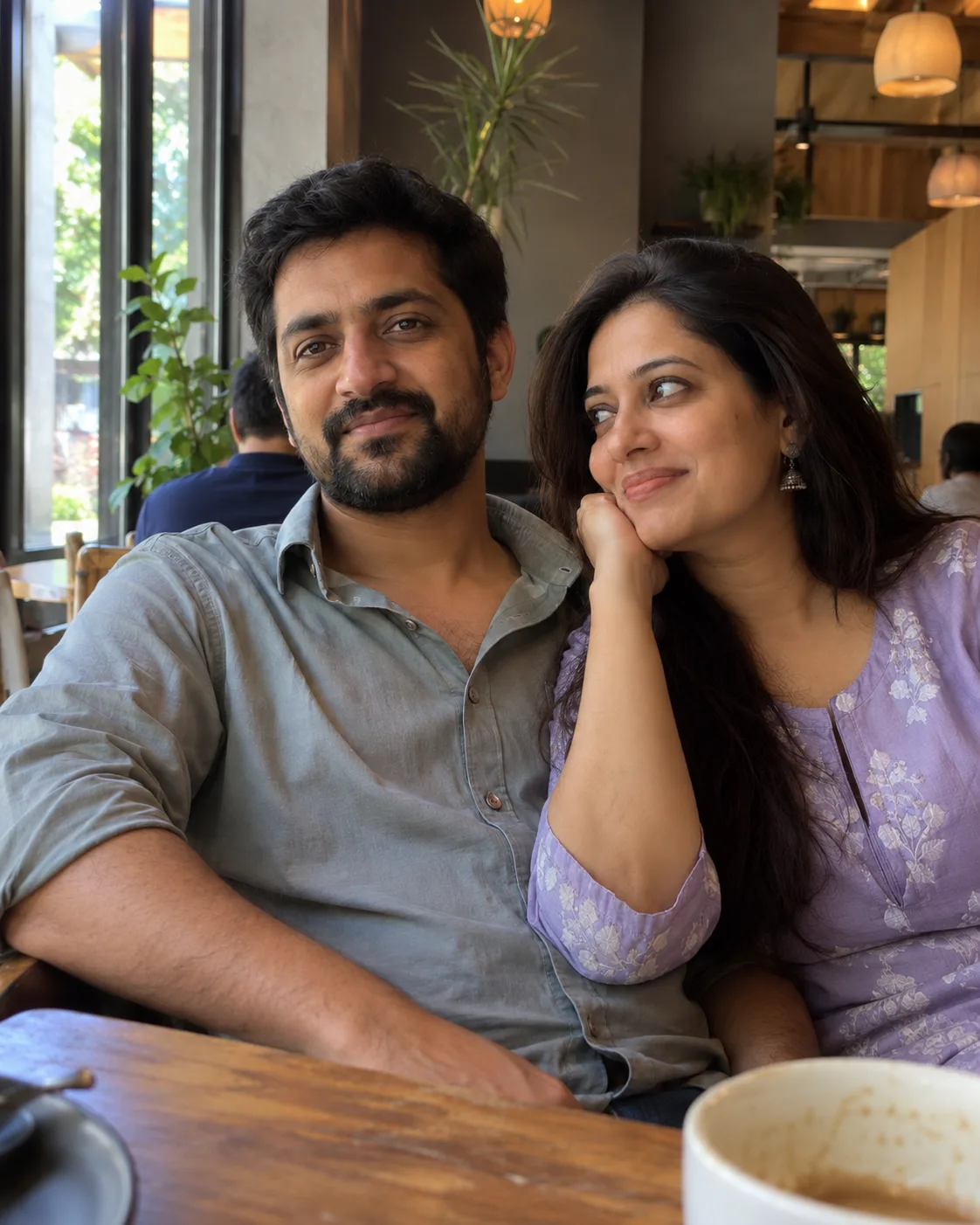
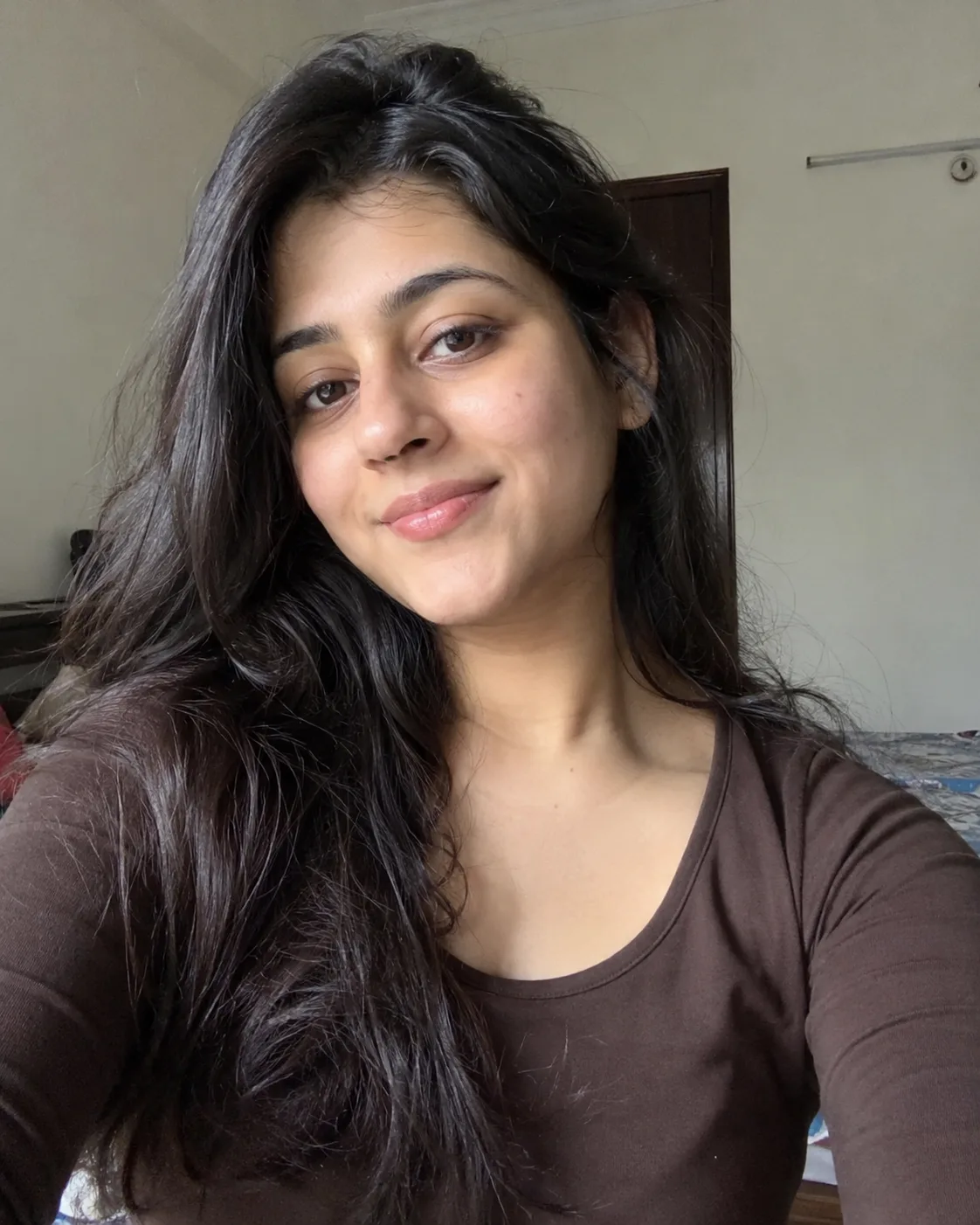
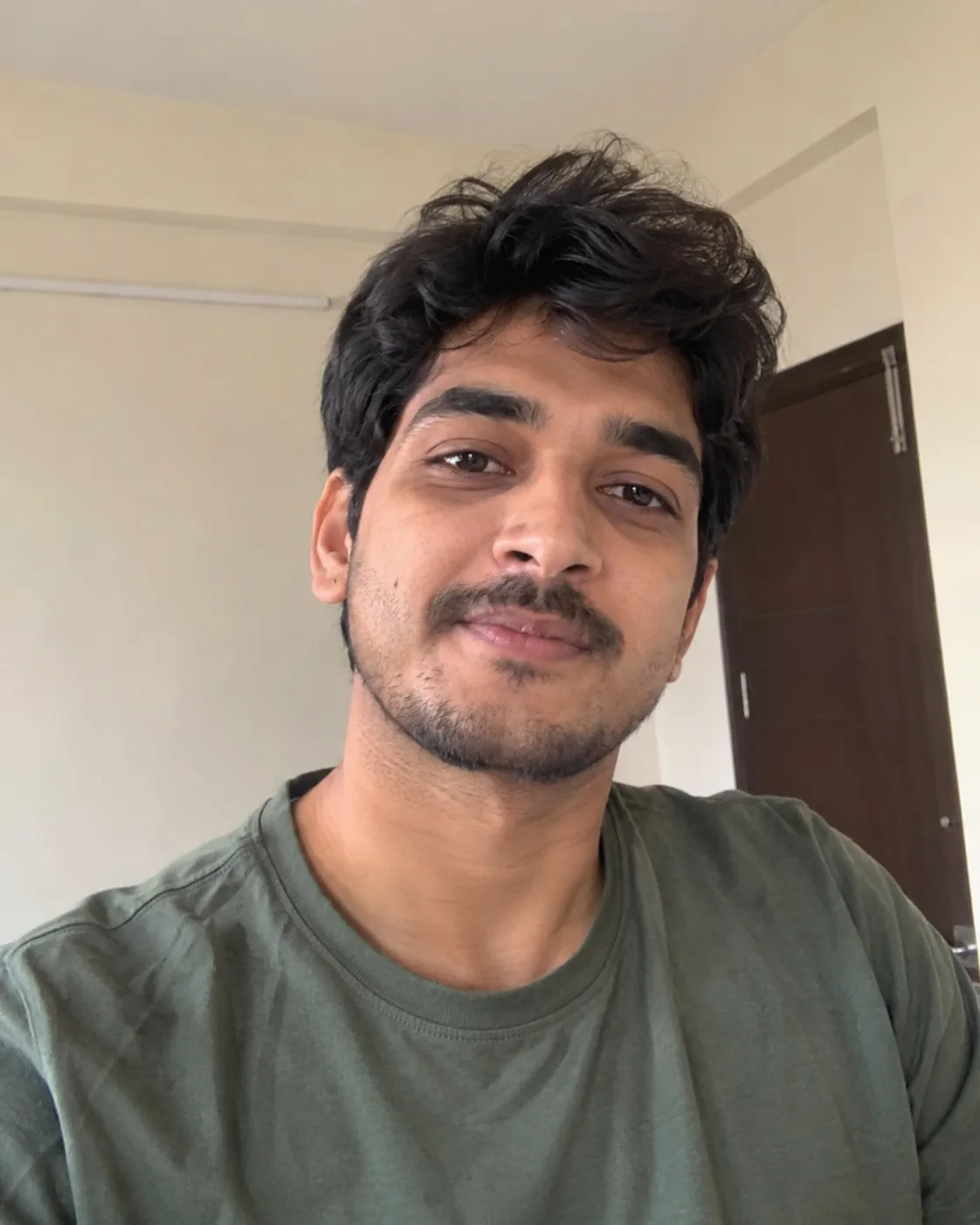
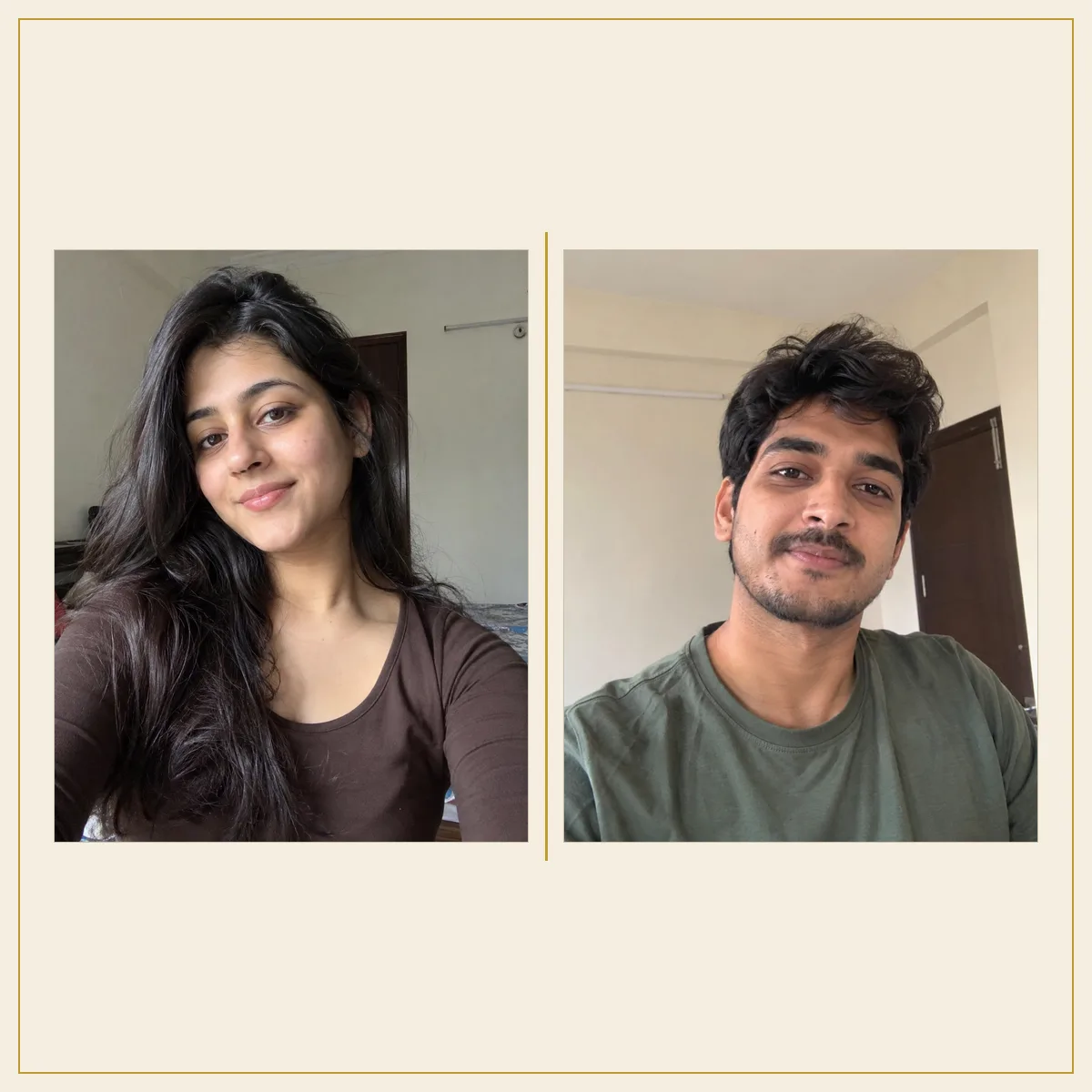
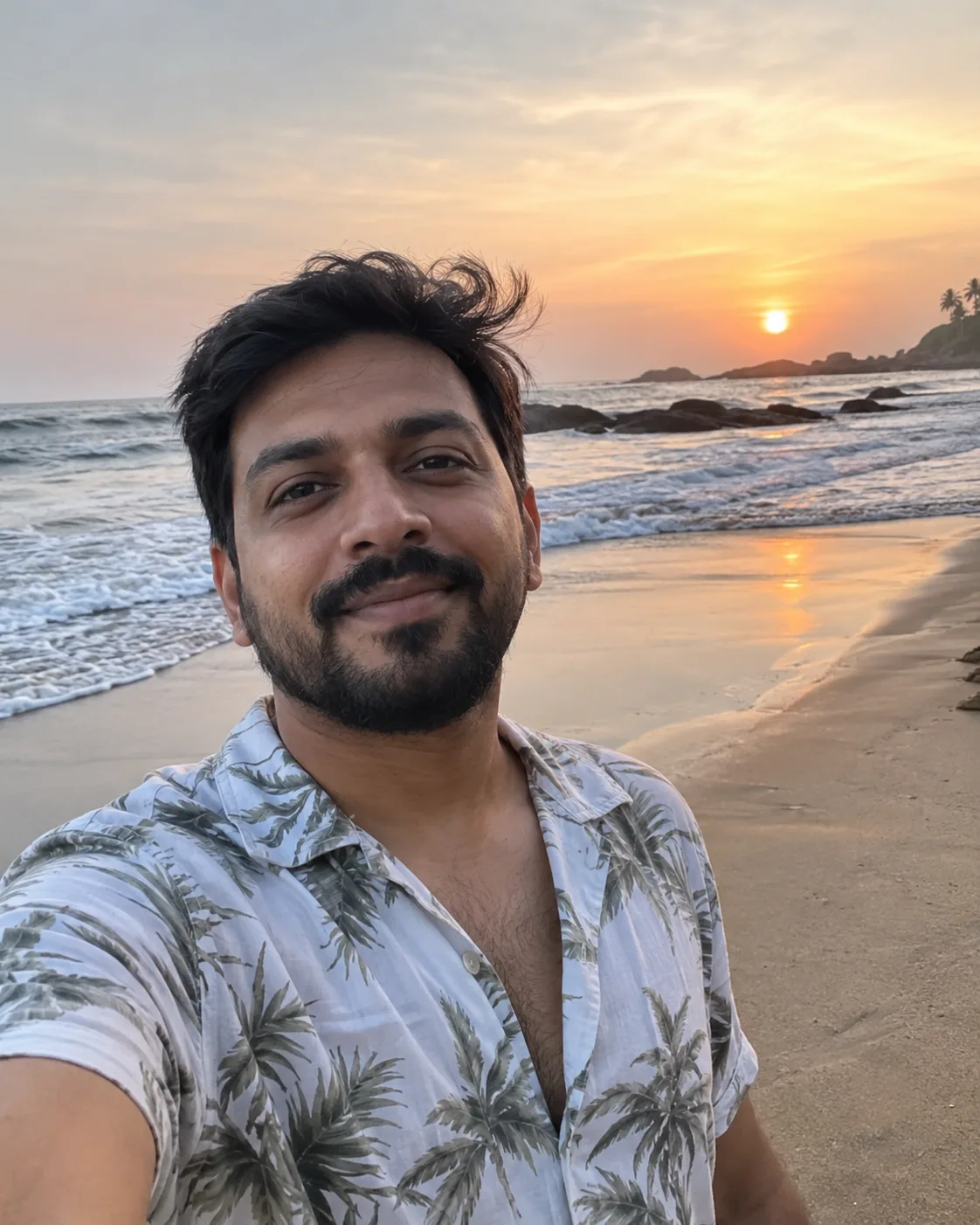
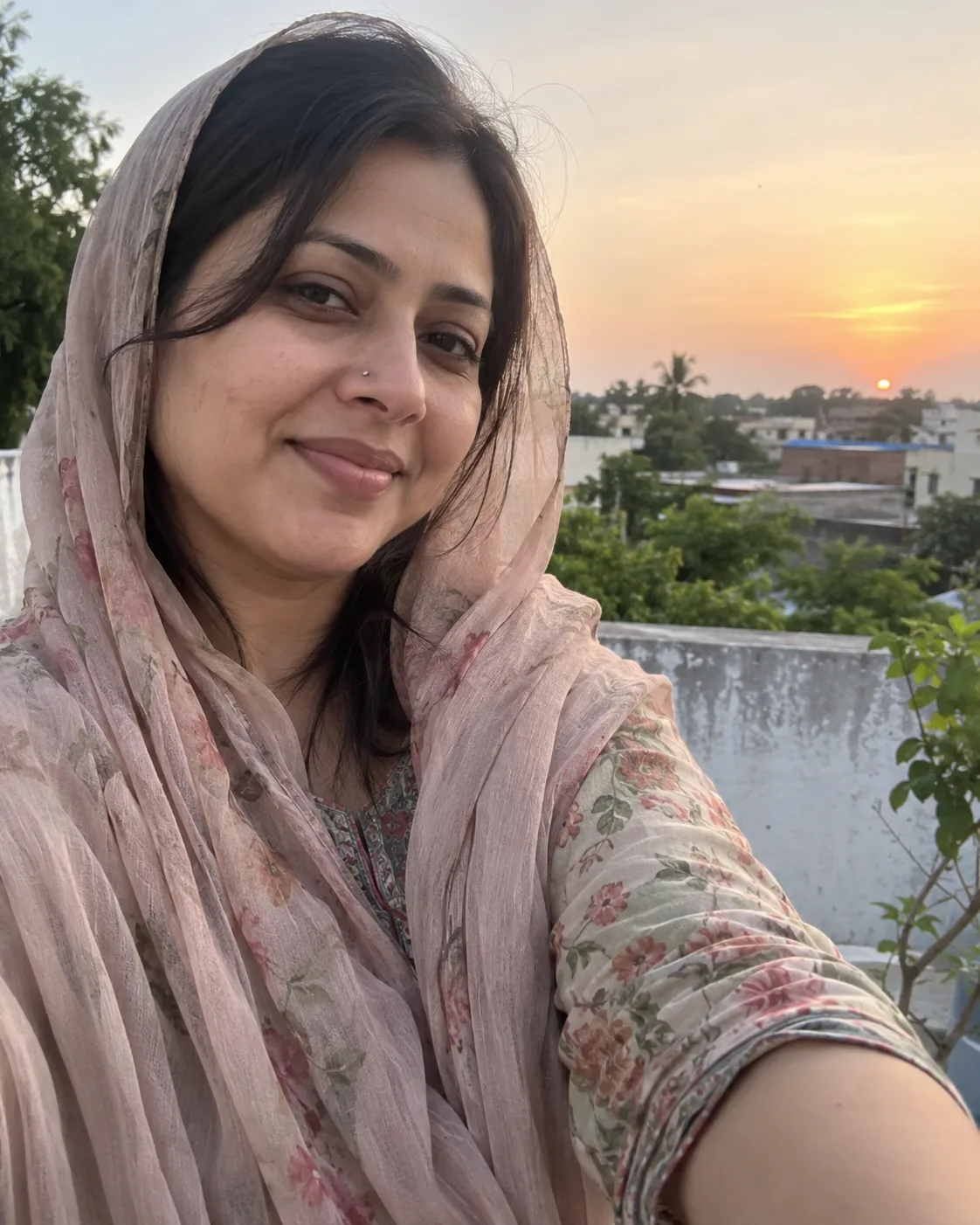
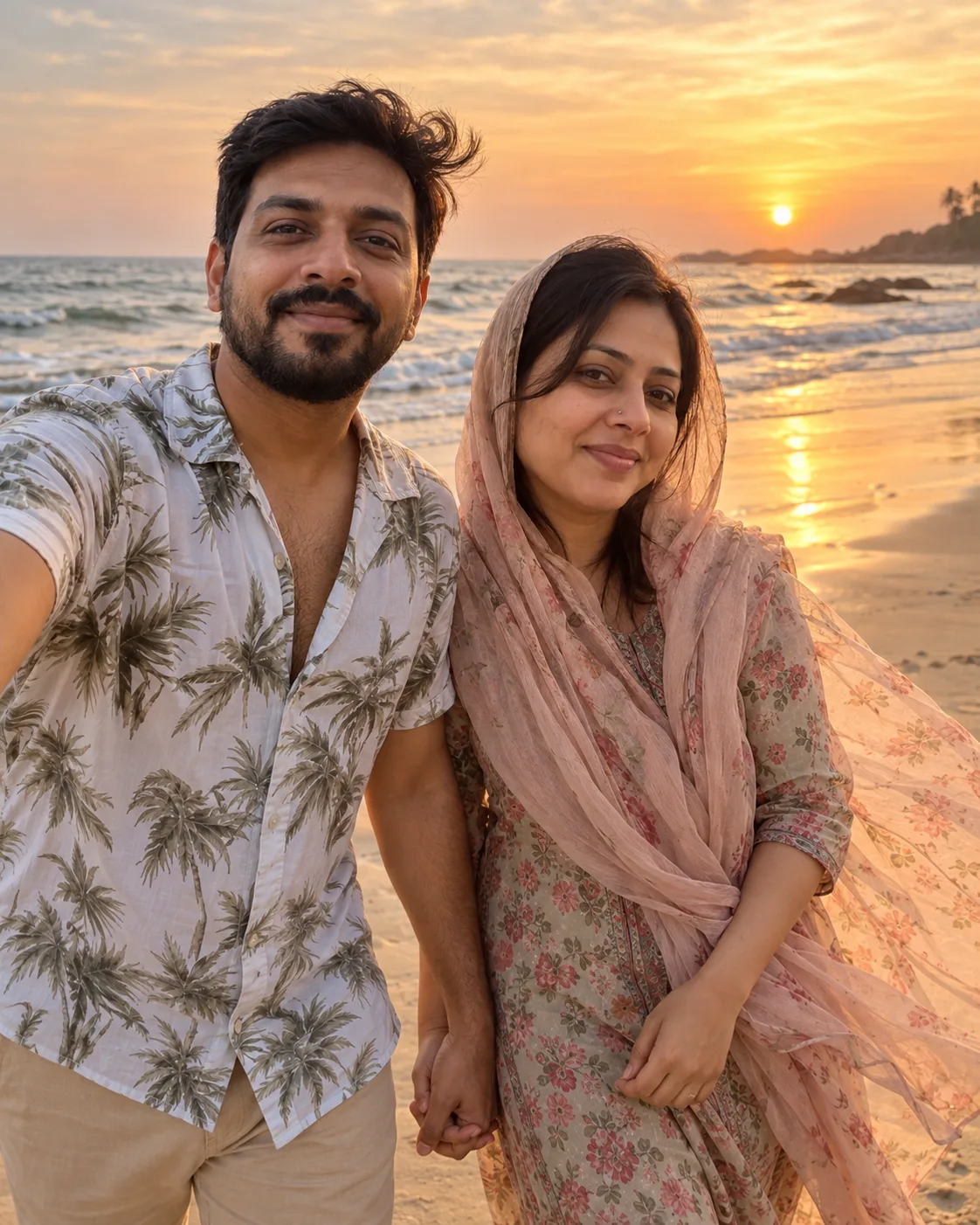
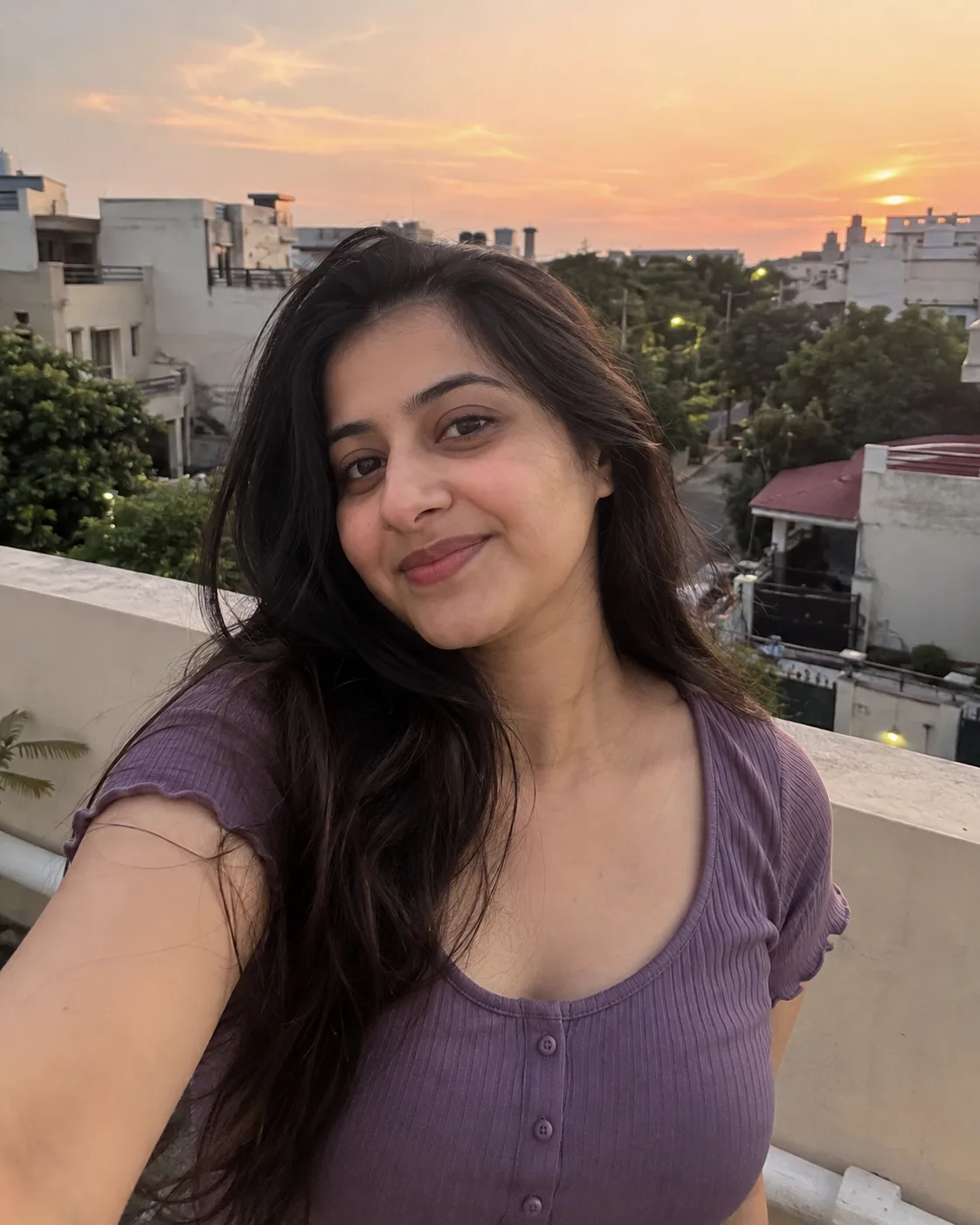
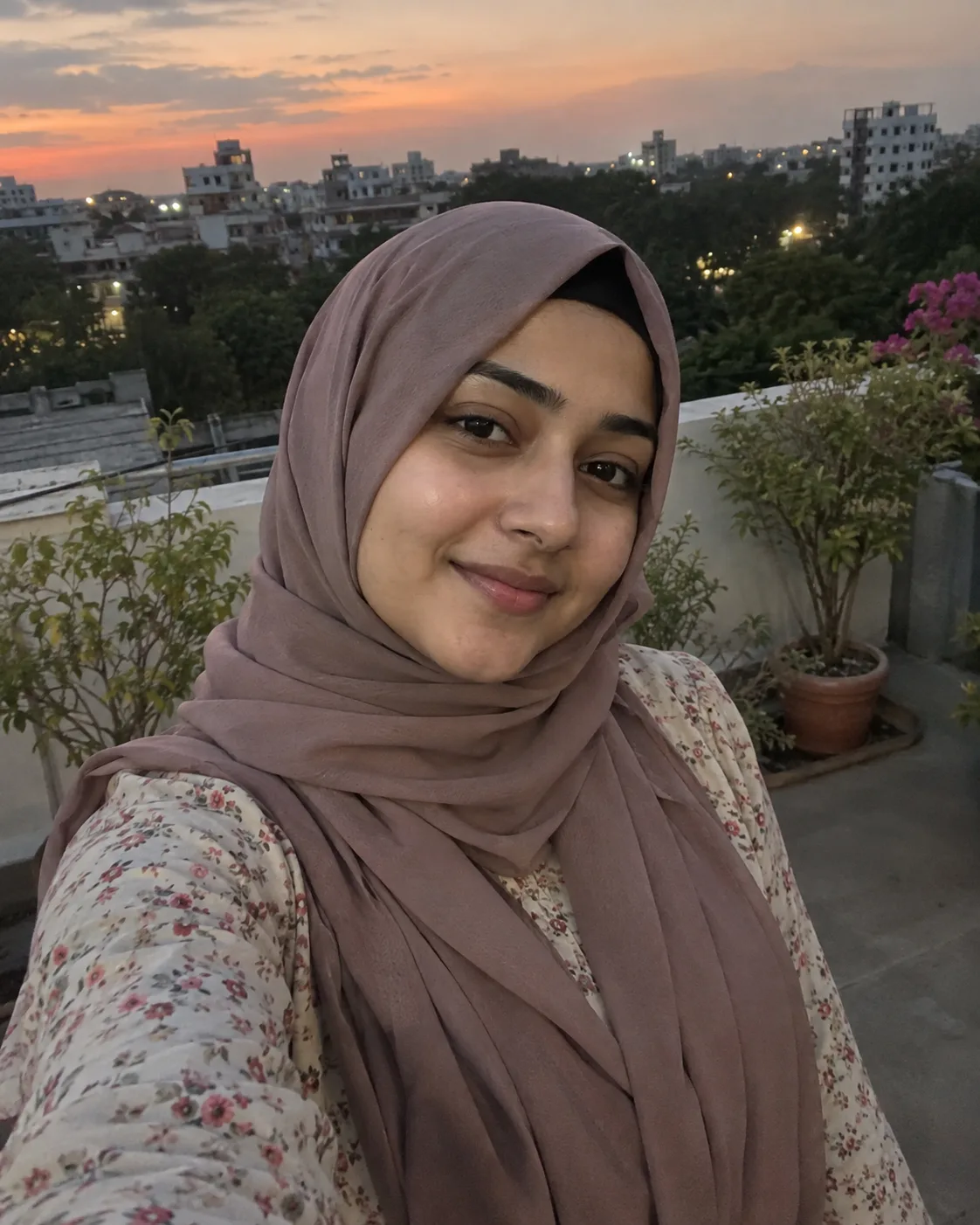
The people and animals in the before photos are AI-generated, not real. Every after image on this page is an AI edit of those two sources.
2. Cafe window
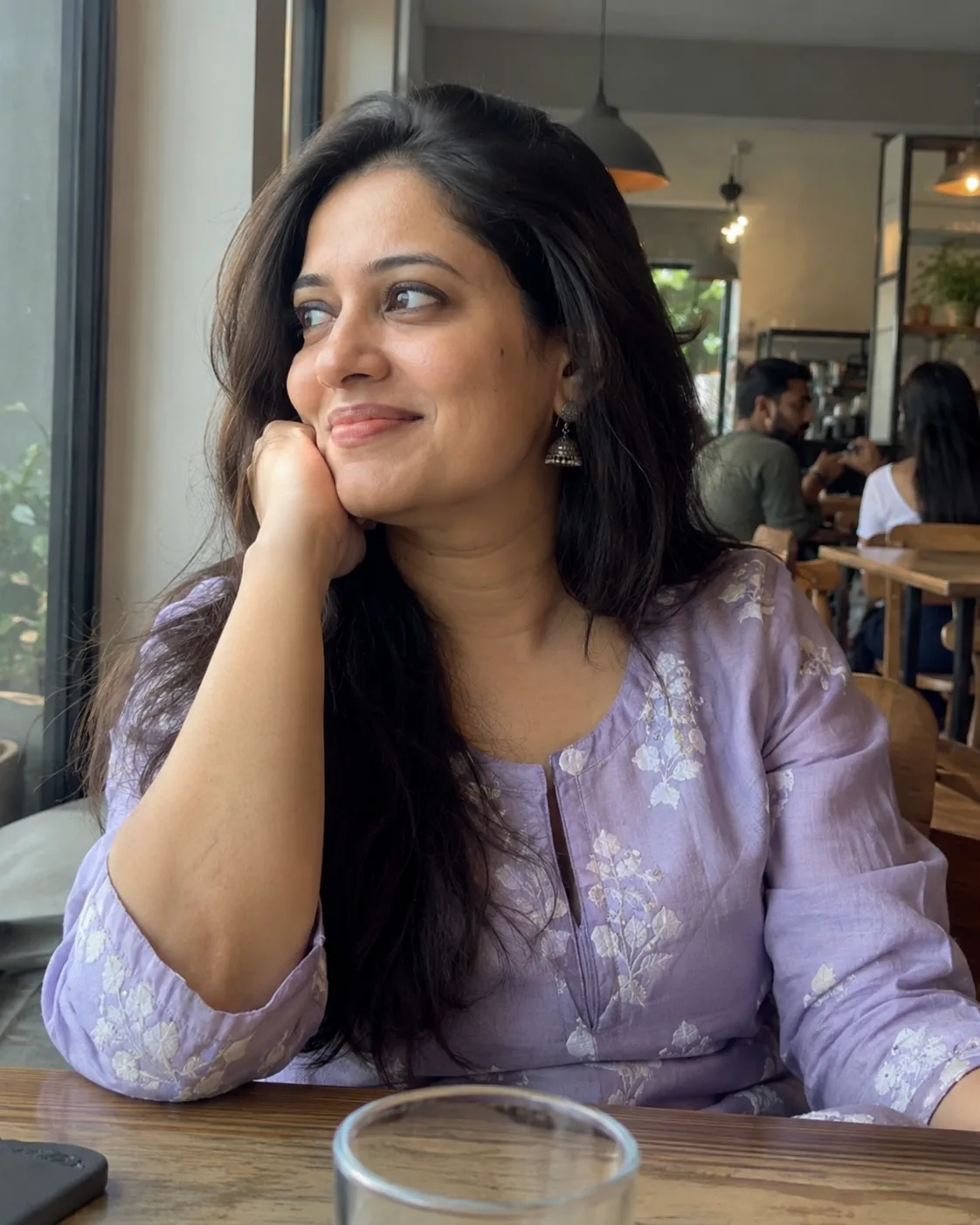
A Gemini prompt to merge two images of a couple, seated at one window table. This longer list is also a two photo merge AI prompt ChatGPT follows closely.
Use the first uploaded photo and the second uploaded photo as identity references and create one new waist-up group photo of a couple seated together at a cafe table by a window. The first uploaded photo shows person A and the second uploaded photo shows person B. Follow the selected source-preservation settings: identities and facial features. Always keep person A's face shape, eyes, nose, lips, hairline, hair, any beard, glasses, or head covering, apparent age, and exact skin tone as in the first uploaded photo, and person B's exactly as in the second uploaded photo. Treat them as two separate people; do not blend, swap, beautify, slim, de-age, or lighten either face, and keep natural skin texture. Keep the outfit each person wears in their own photo. If group arrangement and pose are not preserved, seat them side by side at the table, both smiling at the camera, at realistic matching sizes. Light both faces with soft window light from the right, with matching shadows and color temperature. Keep the table clean, with only plain unbranded cups. Apply warm natural neutral color grading. Replace the background with cozy café table beside a large window with softly blurred interior, keeping clean edges around hair and clothing. Do not add extra people, text, lettering, or logos. Compose for 4:5 Portrait without cropping either face.

3. Two photos in one frame
A combine two photos in one frame AI prompt. Both originals stay as they are, side by side on cream paper with a thin gold divider.
Place the first uploaded photo on the left and the second uploaded photo on the right, side by side in one elegant framed layout as a single couple keepsake of the group. Follow the selected source-preservation settings: identities and facial features and group arrangement and pose. Do not change the content of either photo: keep every face, skin tone, outfit, pose, and original photo background exactly as uploaded, and do not merge the people into one scene. If group arrangement and pose are not preserved, you may crop each photo slightly so both share the same size and eye level. Apply a gentle warm elegant neutral color grade to both photos so they match. Set both photos on soft cream paper border with a thin gold divider line, with even margins around them. Do not add extra people, text, lettering, or logos. Compose for 1:1 Square without cropping either face.
4. Long-distance beach
A merge 2 photos AI prompt for a long-distance couple: walking hand in hand on a sunset beach, with a dupatta or scarf kept if one is worn.
Merge the first uploaded photo and the second uploaded photo into one natural group photo of a long-distance couple finally together on a beach at sunset. The first uploaded photo shows person A and the second uploaded photo shows person B. Follow the selected source-preservation settings: identities and facial features. Always keep person A's face shape, eyes, nose, lips, hairline, hair, any beard, glasses, or head covering, apparent age, and exact skin tone as in the first uploaded photo, and person B's exactly as in the second uploaded photo. Treat them as two separate people; do not blend, swap, beautify, slim, de-age, or lighten either face, and keep natural skin texture. Dress both in modest, casual summer clothes; if either wears a dupatta, scarf, or head covering, keep it and let the sea breeze move it gently. If group arrangement and pose are not preserved, show them walking hand in hand toward the camera, smiling, at realistic relative heights. Give both the same warm sunset backlight and matching shadows so they look photographed together. Apply warm sunset backlight with soft golden haze color grading. Replace the background with wide sandy beach at sunset with gentle waves and a glowing horizon, keeping clean edges around hair and clothing. Do not add extra people, text, lettering, or logos. Compose for 4:5 Portrait without cropping either face.
Family, friends, and a pet
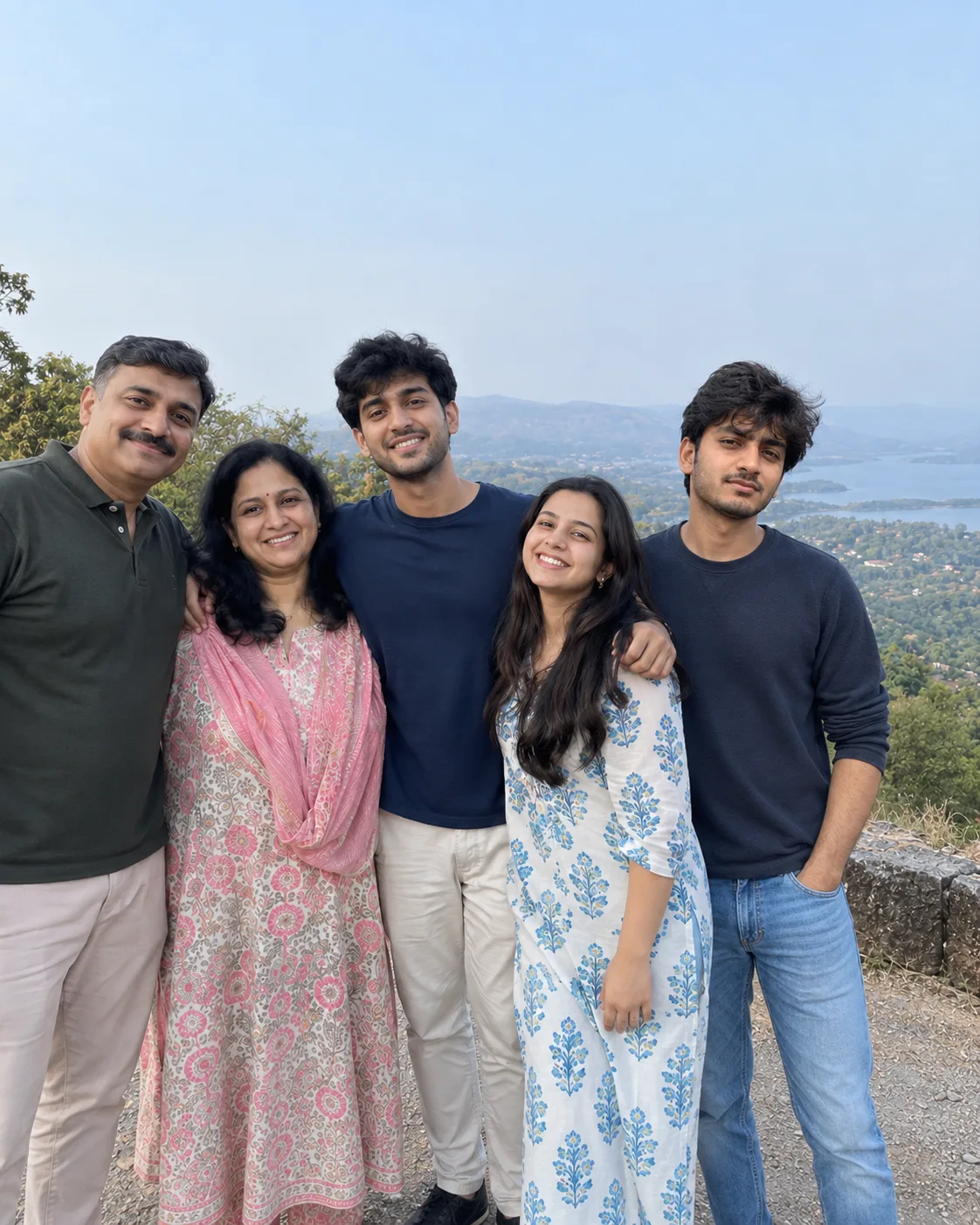
5. Add a missing person
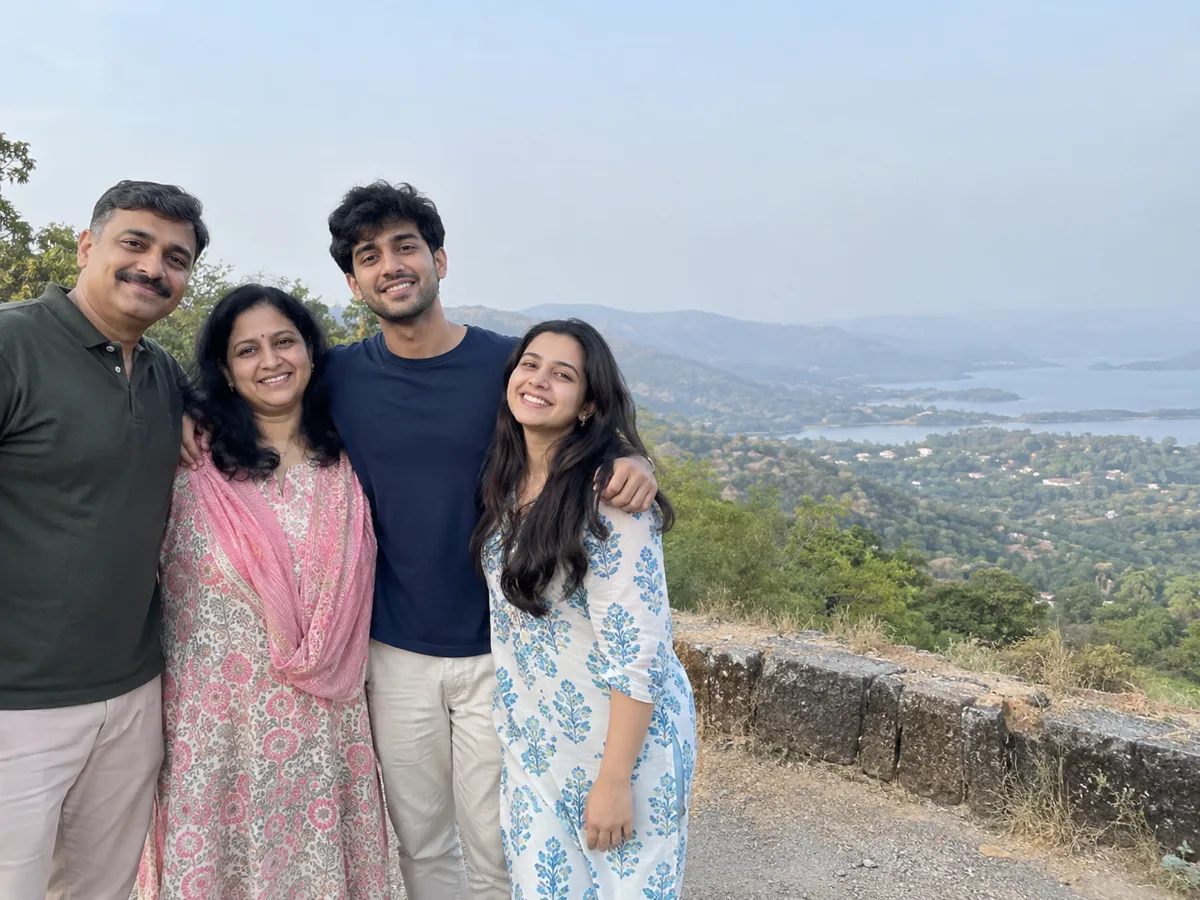
An add missing person to photo AI prompt, and the same idea as an add person to group photo AI prompt. The group photo is first. The person to add is second, placed at the right end.
The first uploaded photo is a group photo of a family. The second uploaded photo shows one more person who was missing from it. Add the person from the second uploaded photo into the first uploaded photo, standing at the right end of the group. Follow the selected source-preservation settings: identities and facial features and group arrangement and pose. Keep everyone already in the first uploaded photo exactly as they are: faces, skin tones, clothing, and positions. Keep the added person's face shape, eyes, nose, lips, hairline, hair, any beard, glasses, or head covering, apparent age, exact skin tone, and outfit exactly as in the second uploaded photo; do not blend them with anyone else, beautify, slim, de-age, or lighten them. If group arrangement and pose are not preserved, you may shift people slightly so the added person fits naturally. Match the added person's size, focus, lighting, shadows, and grain to the rest of the group so they look like they were there. Apply match the original photo's colors color grading. Background setting: keep original background; if a new background is chosen, replace it, otherwise keep the first uploaded photo's background and extend it naturally behind the added person. Do not add extra people, text, lettering, or logos. Compose for 4:5 Portrait without cropping either face.

6. Eid family portrait
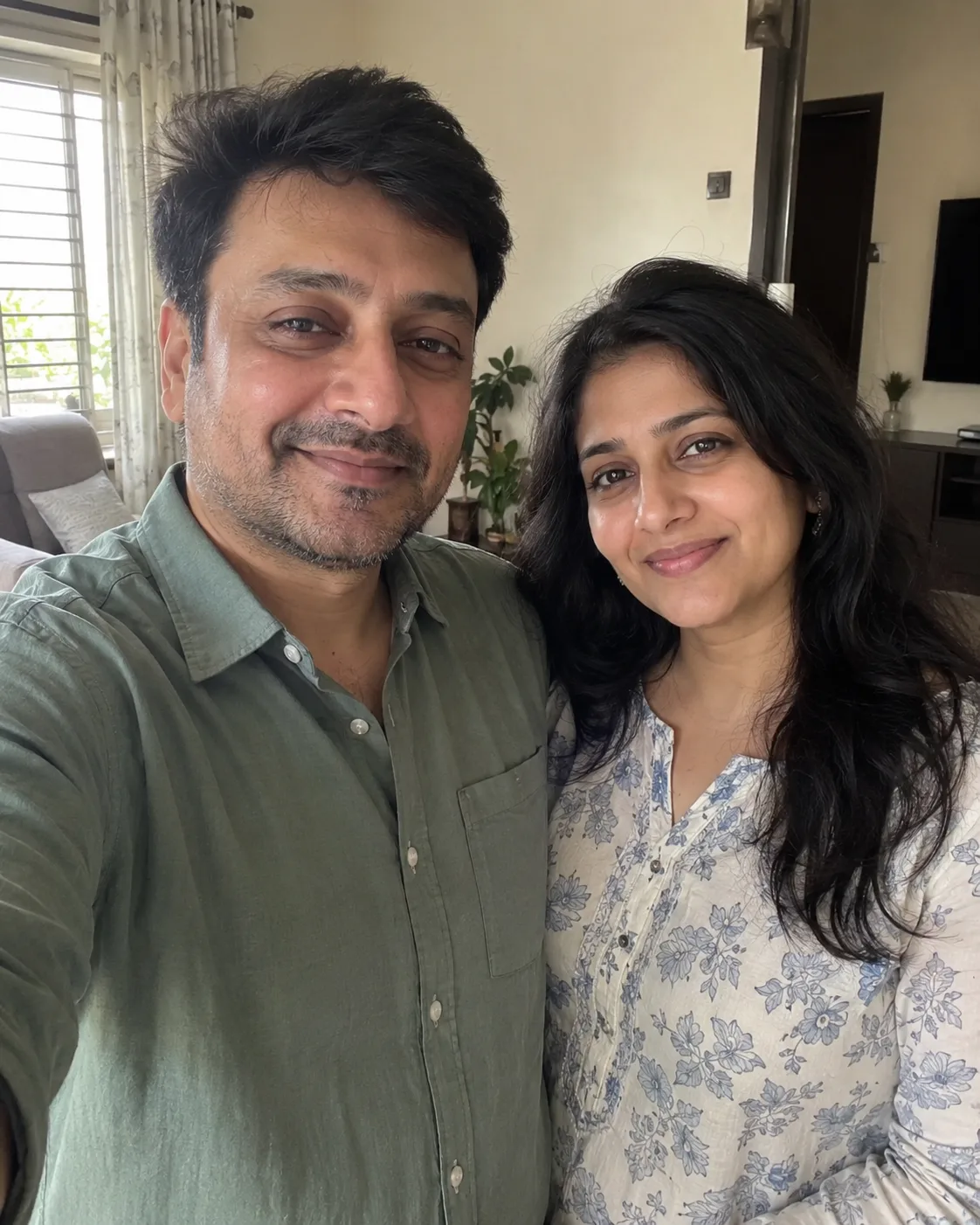
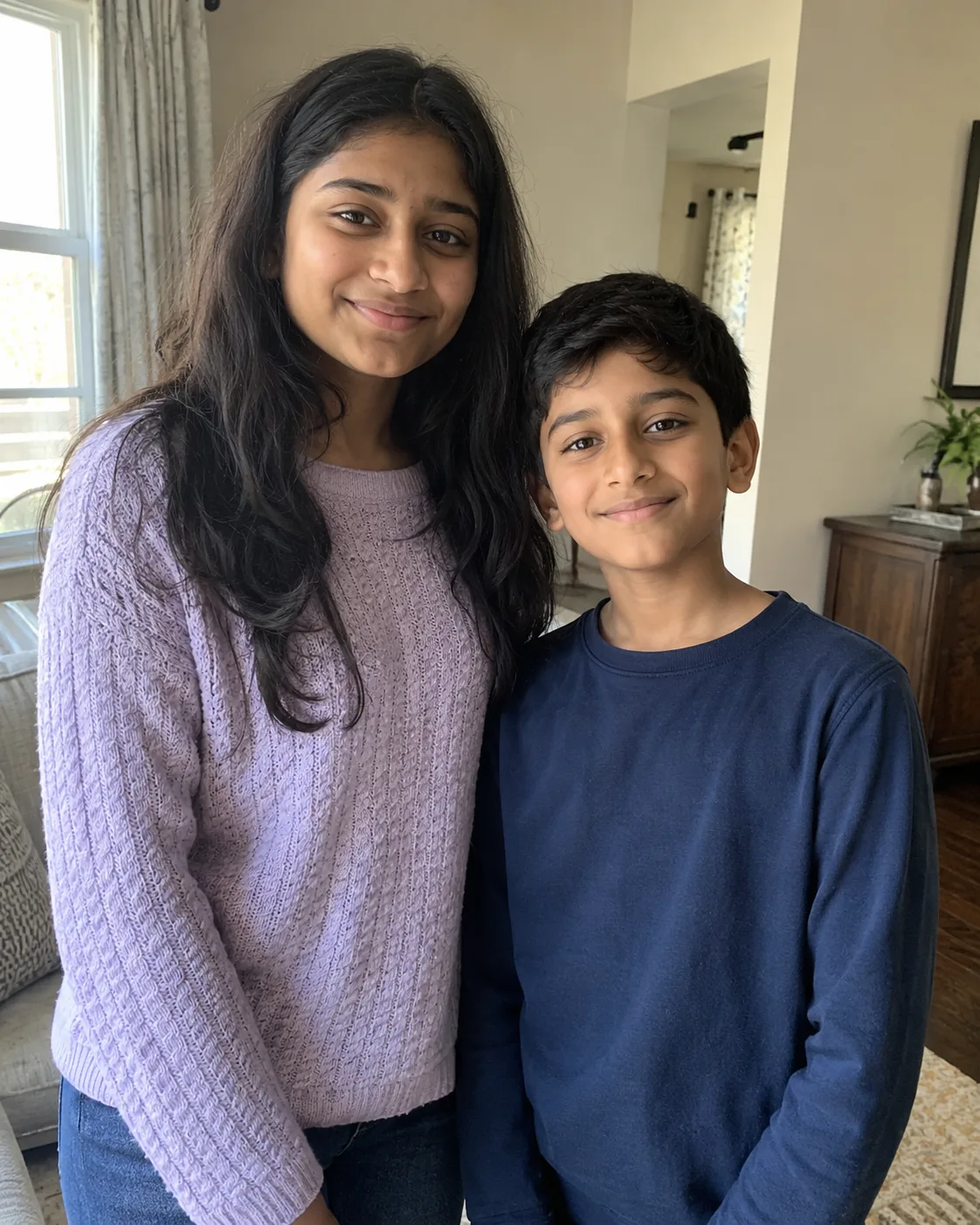
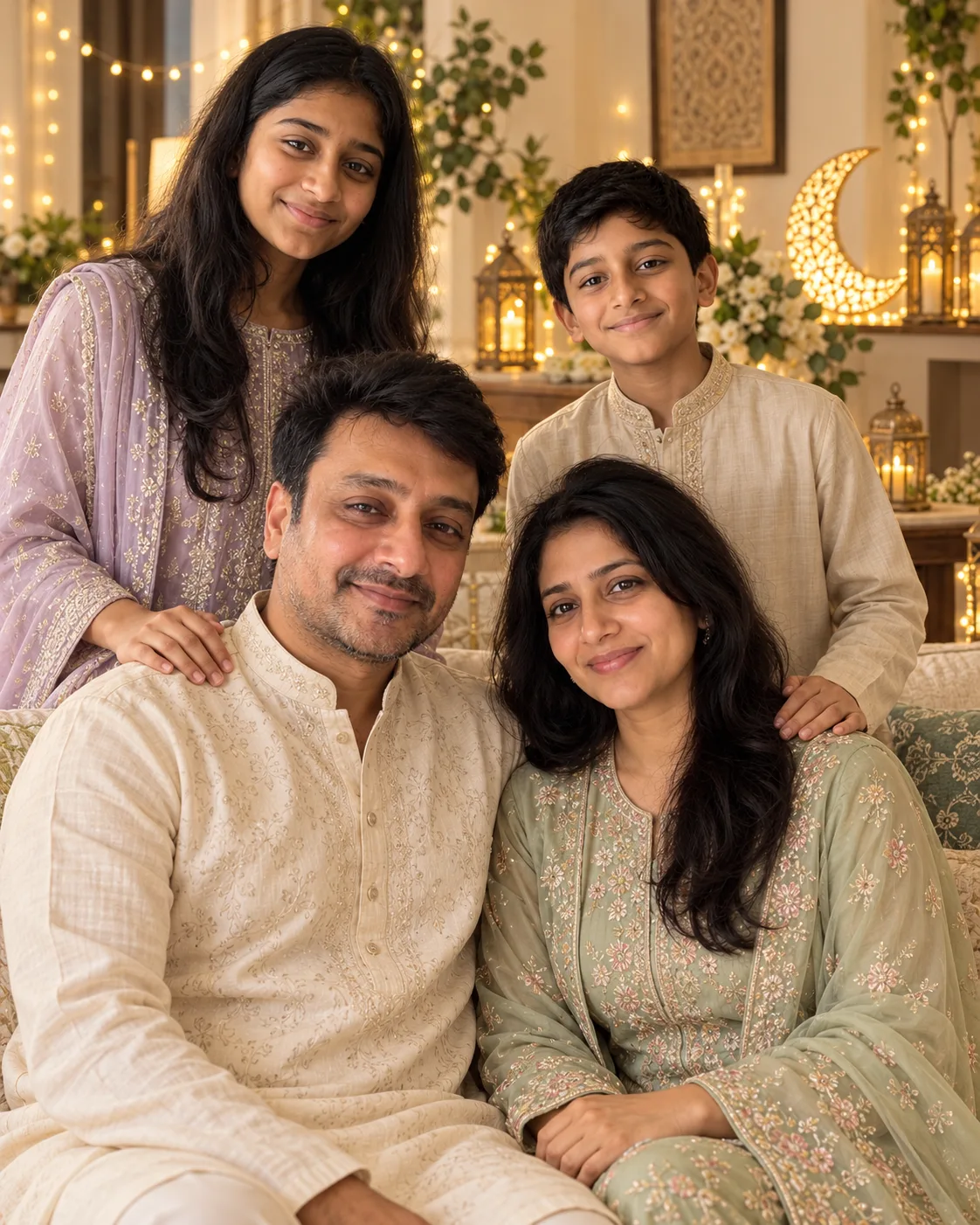
A family photo merge AI prompt, and a Gemini AI family photo merge prompt: the parents' photo first, the children's photo second, everyone in one festive room.
Merge the first uploaded photo and the second uploaded photo into one formal group family portrait for Eid. The first uploaded photo shows the parents and the second uploaded photo shows their children; include every person from both photos and no one else. Follow the selected source-preservation settings: identities and facial features. Always keep each person's face shape, eyes, nose, lips, hairline, hair, any beard, glasses, or head covering, apparent age, height, and exact skin tone exactly as in their own photo. Treat everyone as separate people; do not blend, swap, beautify, slim, de-age, or lighten any face, and keep natural skin texture. Dress everyone in modest, formal festive clothes such as kurtas, shalwar kameez, or embroidered suits in coordinated soft colors. If group arrangement and pose are not preserved, seat the parents on a sofa in the center with the children standing behind or beside them, everyone smiling at the camera, at realistic relative heights. Light everyone with the same soft, warm light. Apply warm golden neutral color grading. Replace the background with living room decorated for eid with warm string lights, crescent lanterns, and soft floral accents, keeping clean edges around hair and clothing. Do not add extra people, text, lettering, or logos. Compose for 4:5 Portrait without cropping any face.
7. Rooftop friends
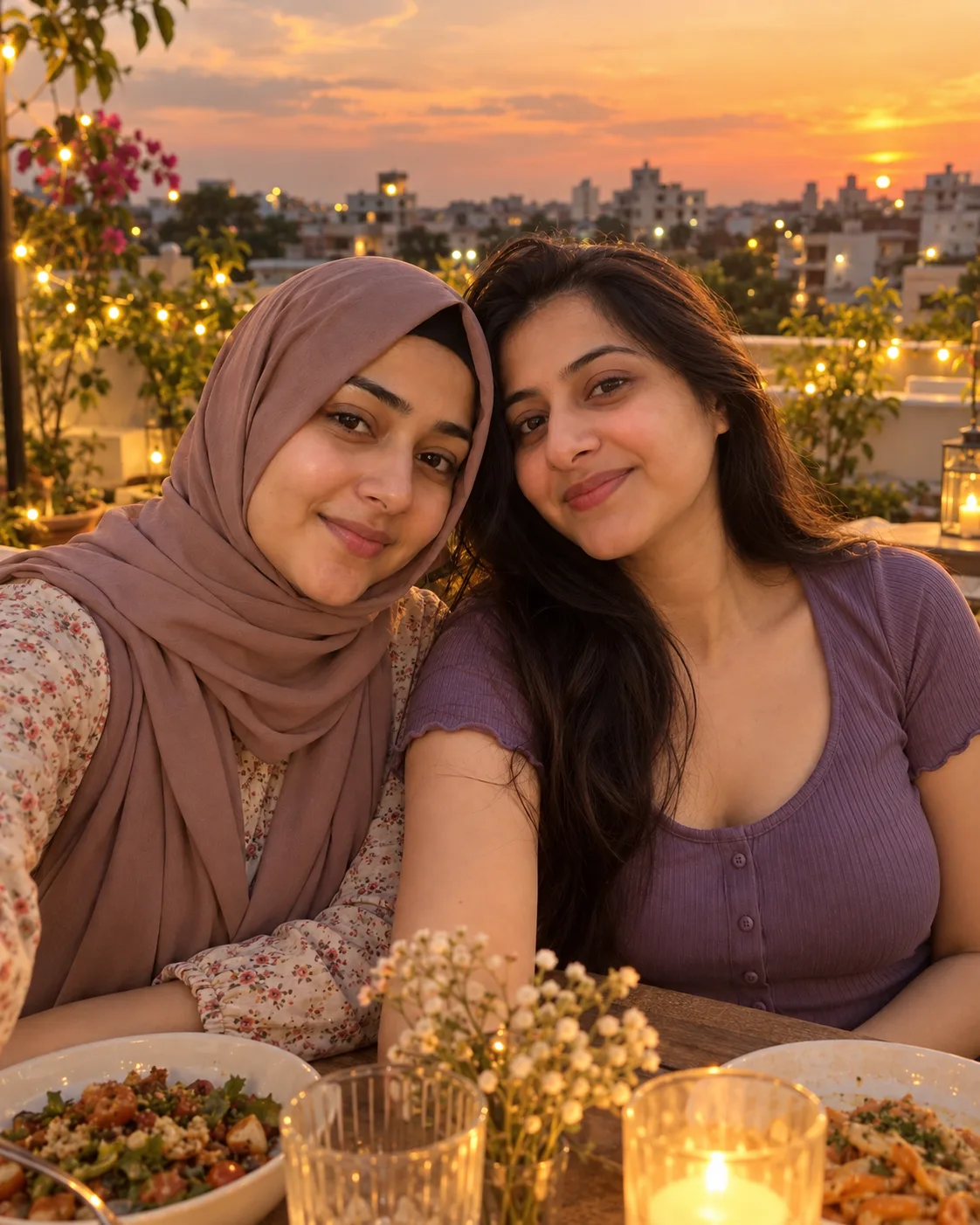
A combine two people in one photo AI prompt for two friends at a rooftop dinner. Each person keeps the clothes from their own selfie.
Merge the first uploaded photo and the second uploaded photo into one candid group photo of two friends reunited at a rooftop dinner. The first uploaded photo shows friend A and the second uploaded photo shows friend B. Follow the selected source-preservation settings: identities and facial features. Always keep friend A's face shape, eyes, nose, lips, hairline, hair, any beard, glasses, or head covering, apparent age, and exact skin tone as in the first uploaded photo, and friend B's exactly as in the second uploaded photo. Treat them as two separate people; do not blend, swap, beautify, slim, de-age, or lighten either face, and keep natural skin texture. Keep the outfit each friend wears in their own photo. If group arrangement and pose are not preserved, seat them side by side at the table, laughing naturally toward the camera, at realistic relative heights. Light both with the same warm evening light. Keep plain unbranded tableware only. Apply warm golden evening color grading. Replace the background with rooftop dinner table at dusk with warm fairy lights and a softly blurred city skyline, keeping clean edges around hair and clothing. Do not add extra people, text, lettering, or logos. Compose for 4:5 Portrait without cropping either face.
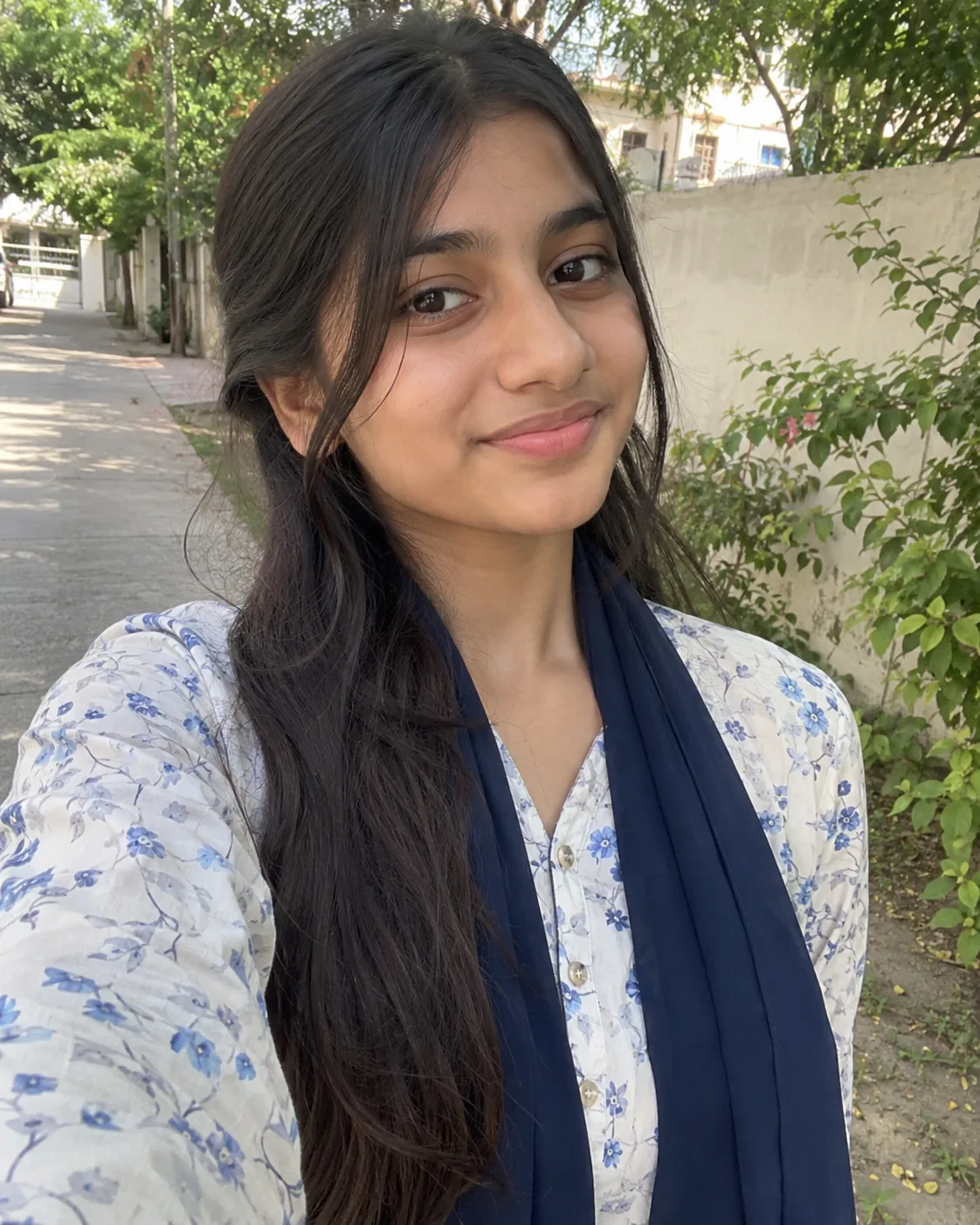
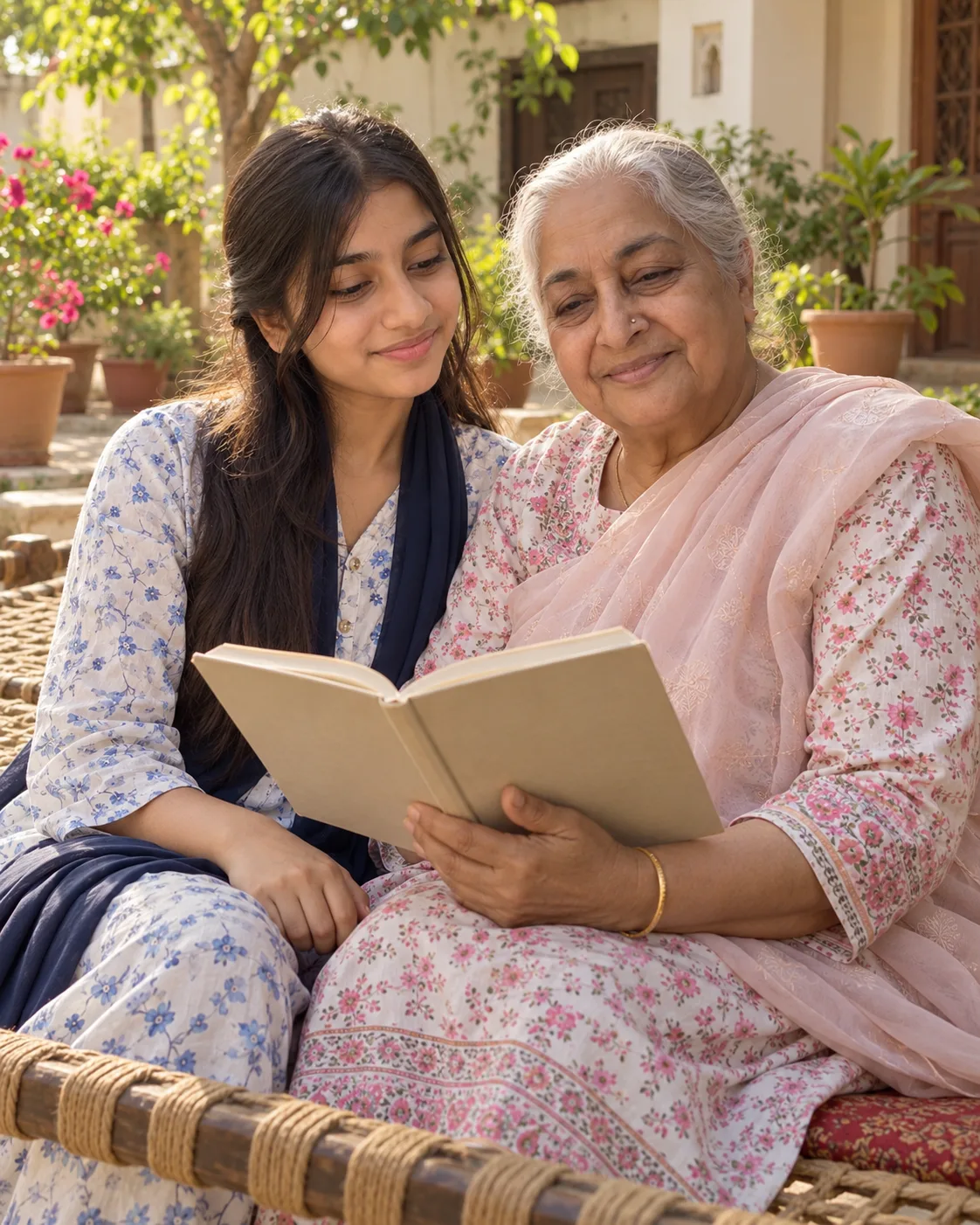
8. Grandparent and grandchild
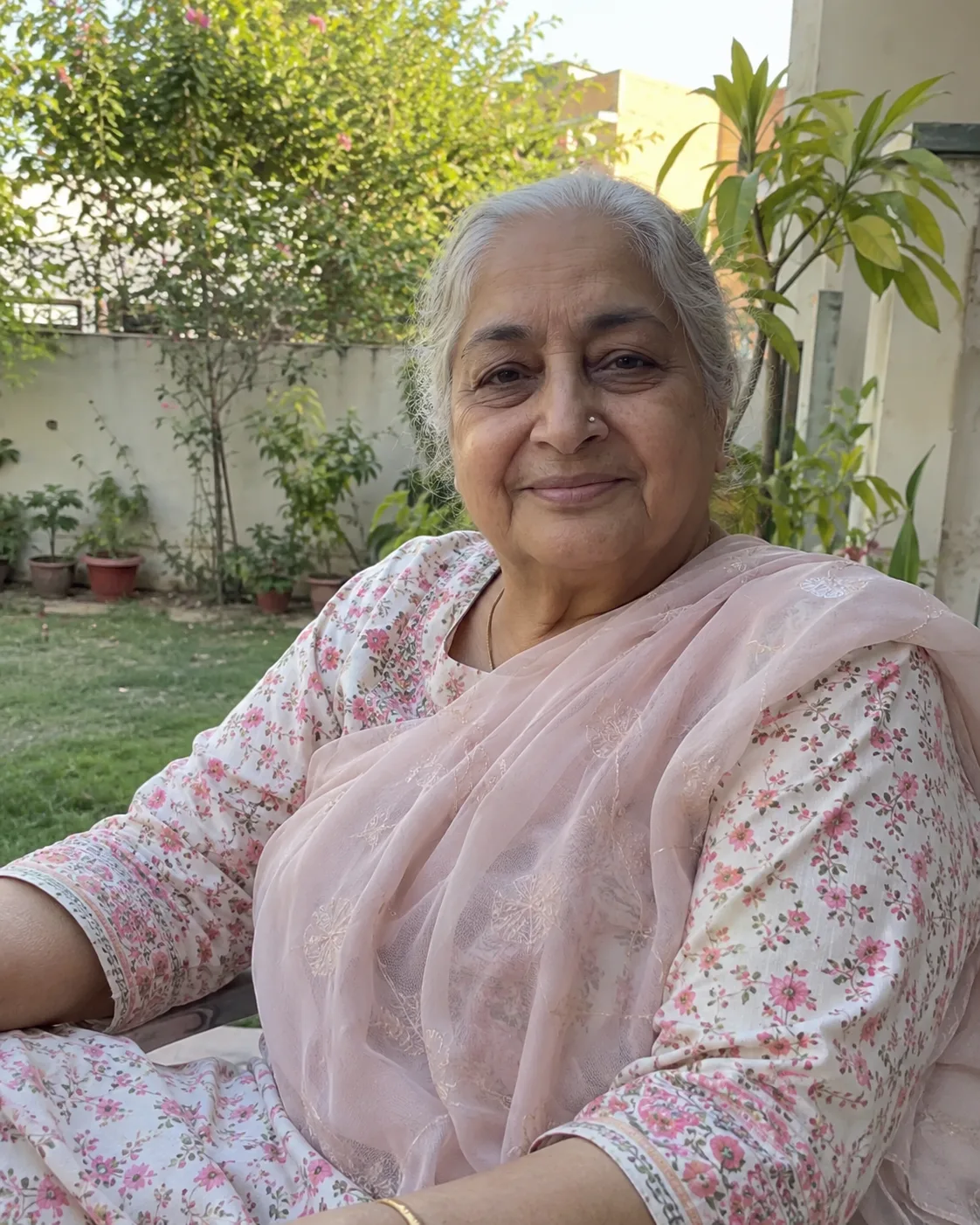
Merge a grandparent's photo with an older grandchild or teen. They sit together on a charpai, and both ages stay as they are.
Merge the first uploaded photo and the second uploaded photo into one warm group photo. The first uploaded photo shows a grandparent and the second uploaded photo shows their older grandchild, a preteen or teenager. Follow the selected source-preservation settings: identities and facial features. Always keep the grandparent's face shape, eyes, nose, lips, hairline, hair, any beard, glasses, or head covering, apparent age, and exact skin tone as in the first uploaded photo, and the grandchild's exactly as in the second uploaded photo. Treat them as two separate people; do not blend, swap, beautify, slim, de-age, or lighten either face, and keep natural skin texture. Keep both ages exactly as they are, with realistic relative sizes. Keep the modest outfit each person wears in their own photo. If group arrangement and pose are not preserved, seat them together on a charpai, the grandparent showing a plain book to the grandchild, both relaxed and smiling. Light both with the same soft morning sunlight. Apply soft warm natural color grading. Replace the background with sunny traditional courtyard with a woven charpai, potted plants, and soft morning light, keeping clean edges around hair and clothing. Do not add extra people, text, lettering, or logos. Compose for 4:5 Portrait without cropping either face.
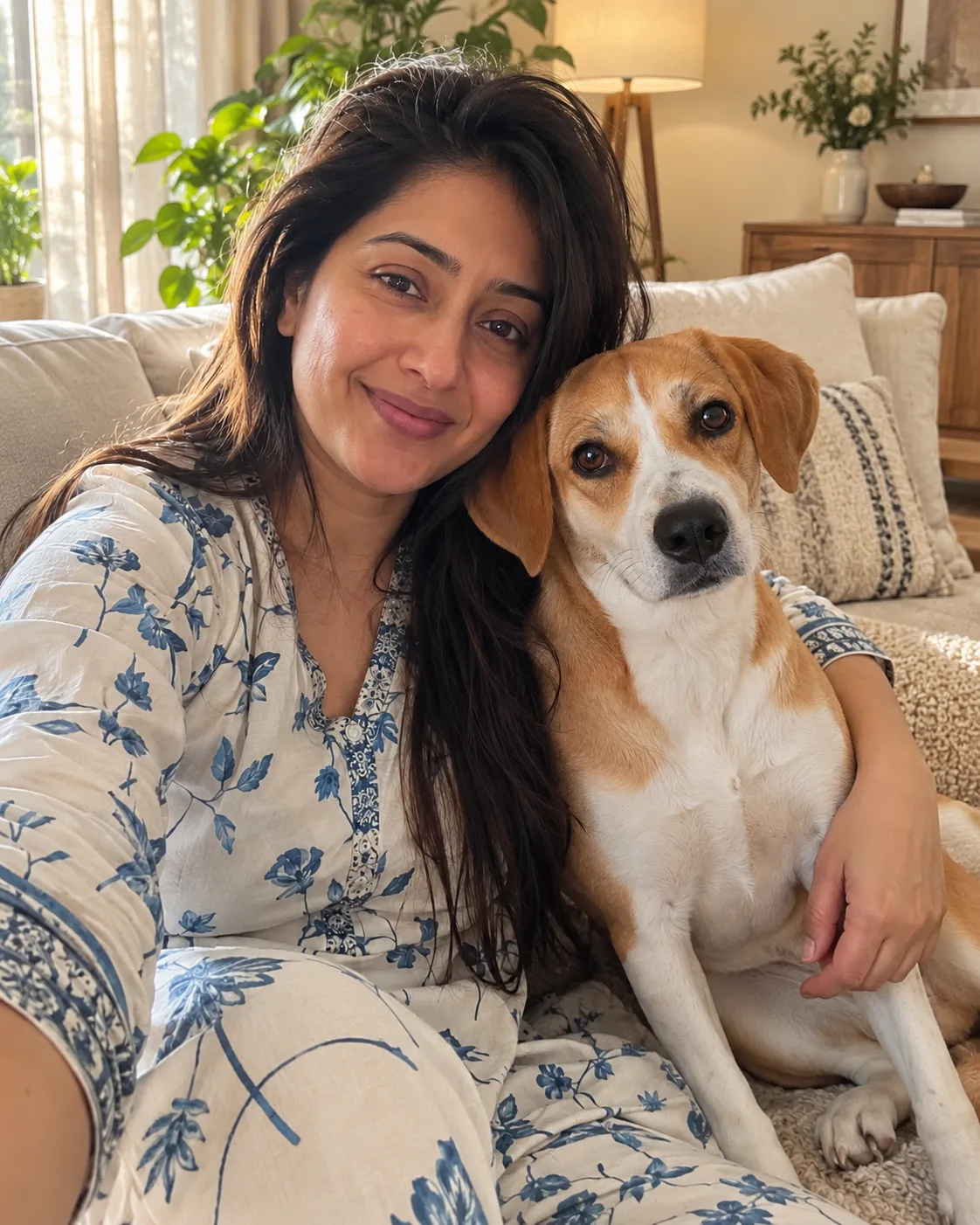
9. You and your pet
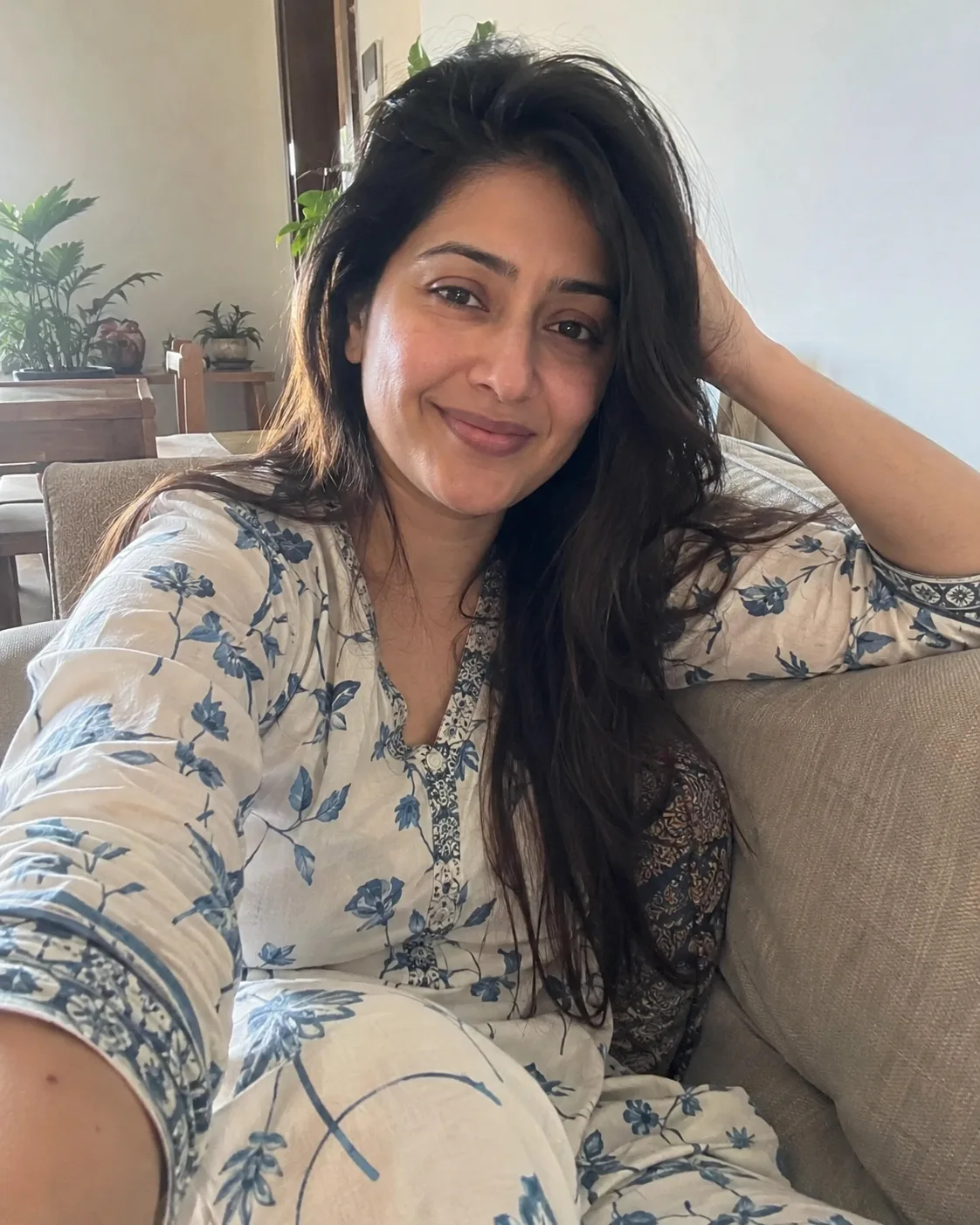
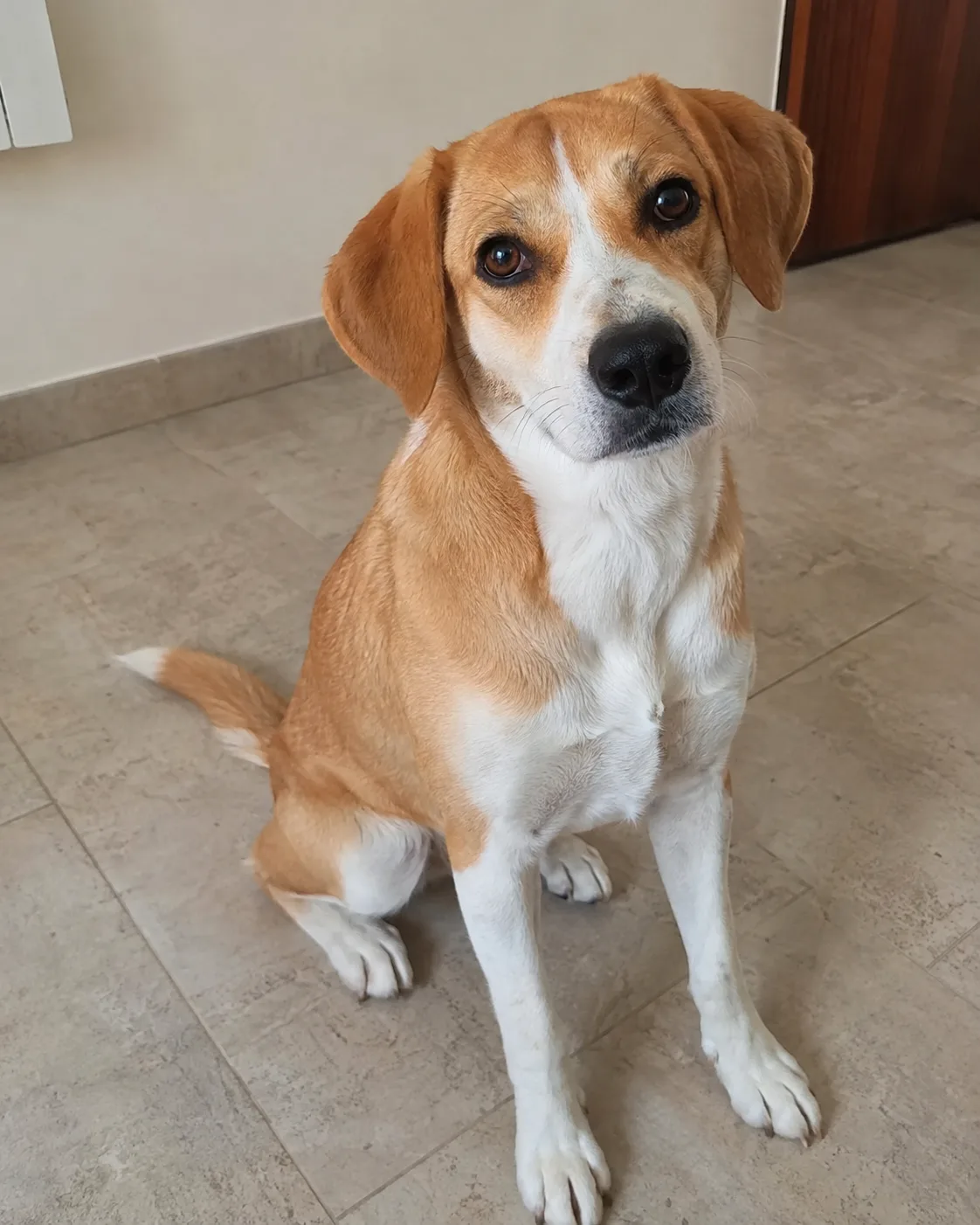
The first photo is the person. The second is the pet. Breed, coat, and markings stay exact.
Merge the first uploaded photo and the second uploaded photo into one cozy, natural photo. The first uploaded photo shows a person and the second uploaded photo shows their pet. Follow the selected source-preservation settings: pet identity and distinctive markings. Always keep the person's face shape, eyes, nose, lips, hairline, hair, any beard, glasses, or head covering, apparent age, exact skin tone, and outfit as in the first uploaded photo; do not beautify, slim, de-age, or lighten them. Always keep the animal's breed, size, coat color, markings, and eye color exactly as in the second uploaded photo. If original pose and composition are not preserved, seat the person on a sofa with the pet leaning against their shoulder, at a realistic size next to an adult. Light both with the same soft daylight. Apply soft warm natural color grading. Replace the background with modern staged living room with cream upholstery, warm natural wood, textured neutral rug, soft curtains, indoor greenery and refined minimal decor, keeping clean edges around hair and fur. Do not add extra people or animals, text, lettering, or logos. Compose for 4:5 Portrait without cropping the face or the pet.
Wedding, graduation, and a trip
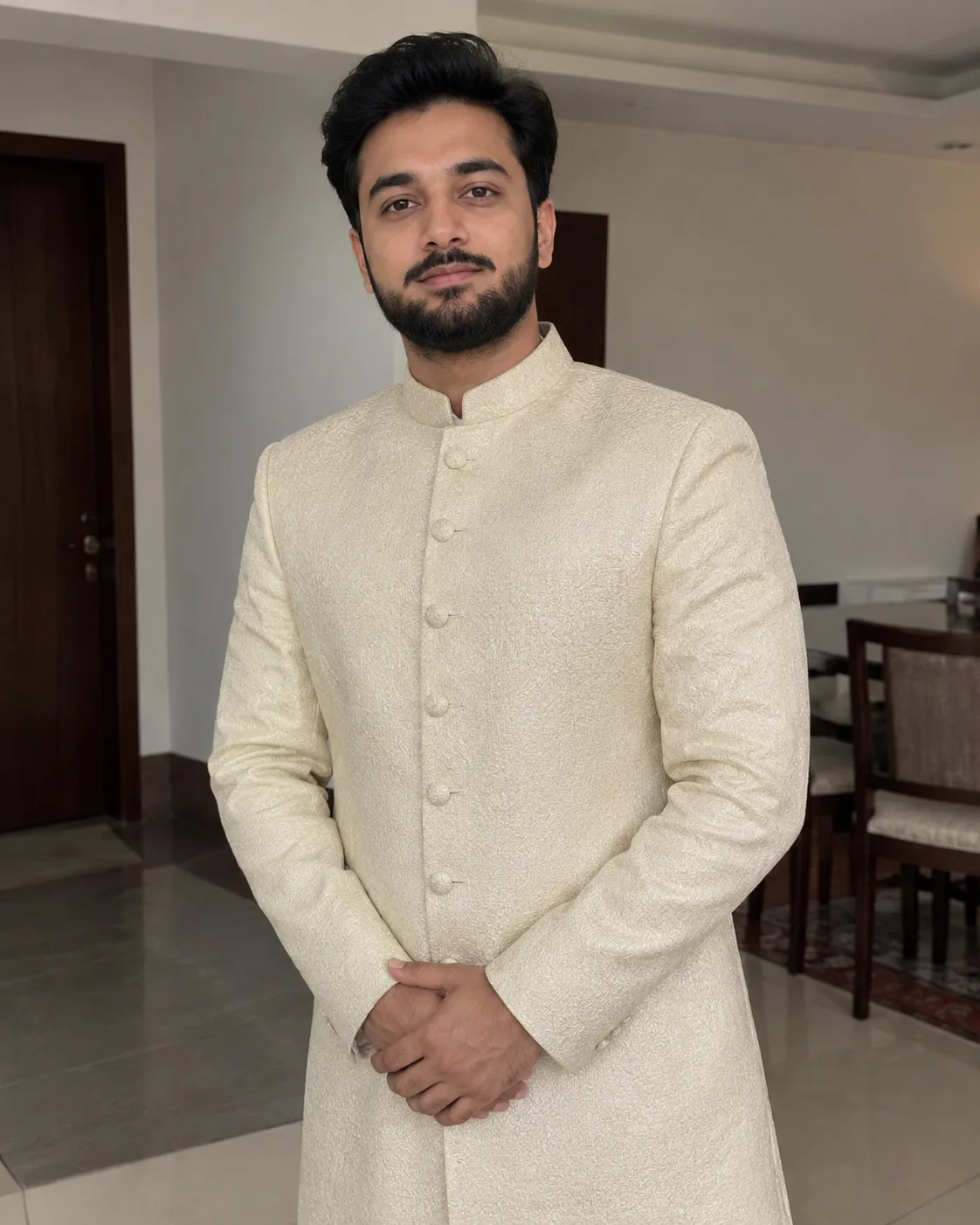
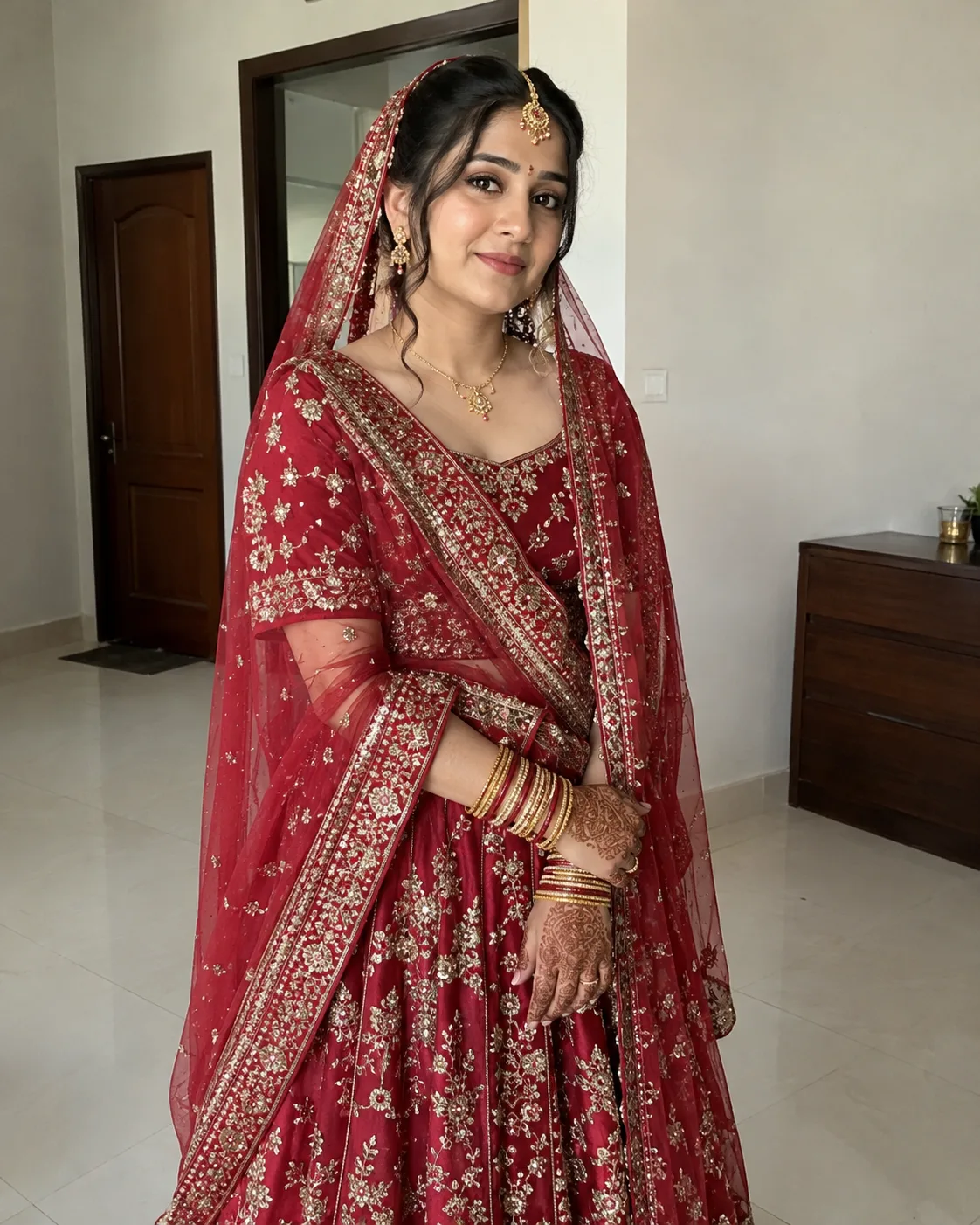
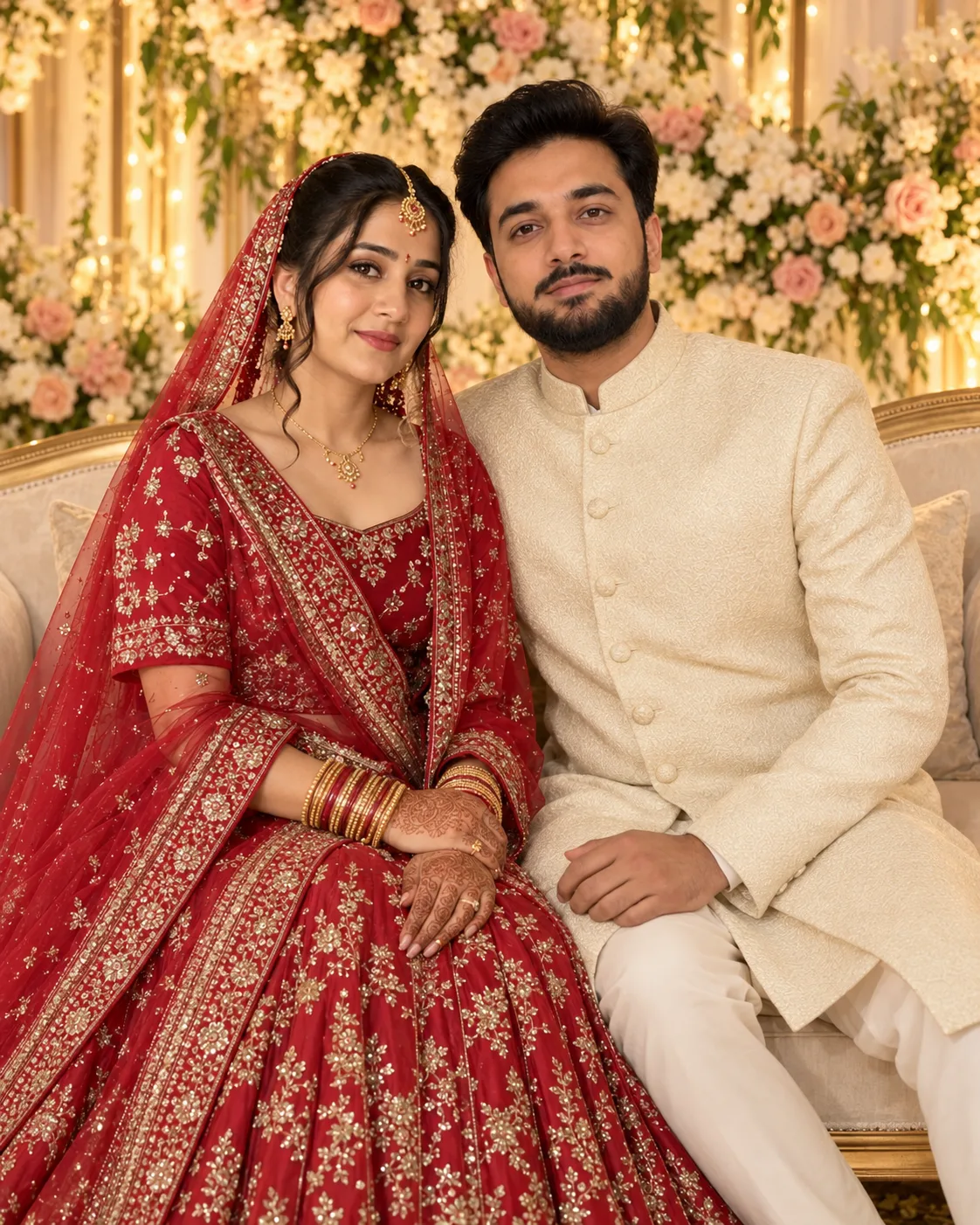
10. Wedding stage
A Gemini AI photo prompt for a couple, copy paste ready: two formal photos become one stage portrait. Jewelry and outfits stay.
Merge the first uploaded photo and the second uploaded photo into one elegant group photo of a couple seated together on a wedding stage. The first uploaded photo shows person A and the second uploaded photo shows person B. Follow the selected source-preservation settings: identities and facial features. Always keep person A's face shape, eyes, nose, lips, hairline, hair, any beard, glasses, or head covering, apparent age, and exact skin tone as in the first uploaded photo, and person B's exactly as in the second uploaded photo. Treat them as two separate people; do not blend, swap, beautify, slim, de-age, or lighten either face, and keep natural skin texture. Keep the outfit and jewelry each person wears in their own photo. If group arrangement and pose are not preserved, seat them side by side on a cream sofa, close together, smiling at the camera, at realistic relative heights. Light both with the same warm, soft stage light. Apply warm golden-hour cinematic glow with honey-amber highlights, rich mustard tones, natural skin color, soft earthy neutrals, and elegant contrast color grading. Replace the background with wedding stage with a floral backdrop of white and blush flowers, warm fairy lights, and a cream sofa, keeping clean edges around hair and clothing. Do not add extra people, text, lettering, or logos. Compose for 4:5 Portrait without cropping either face.
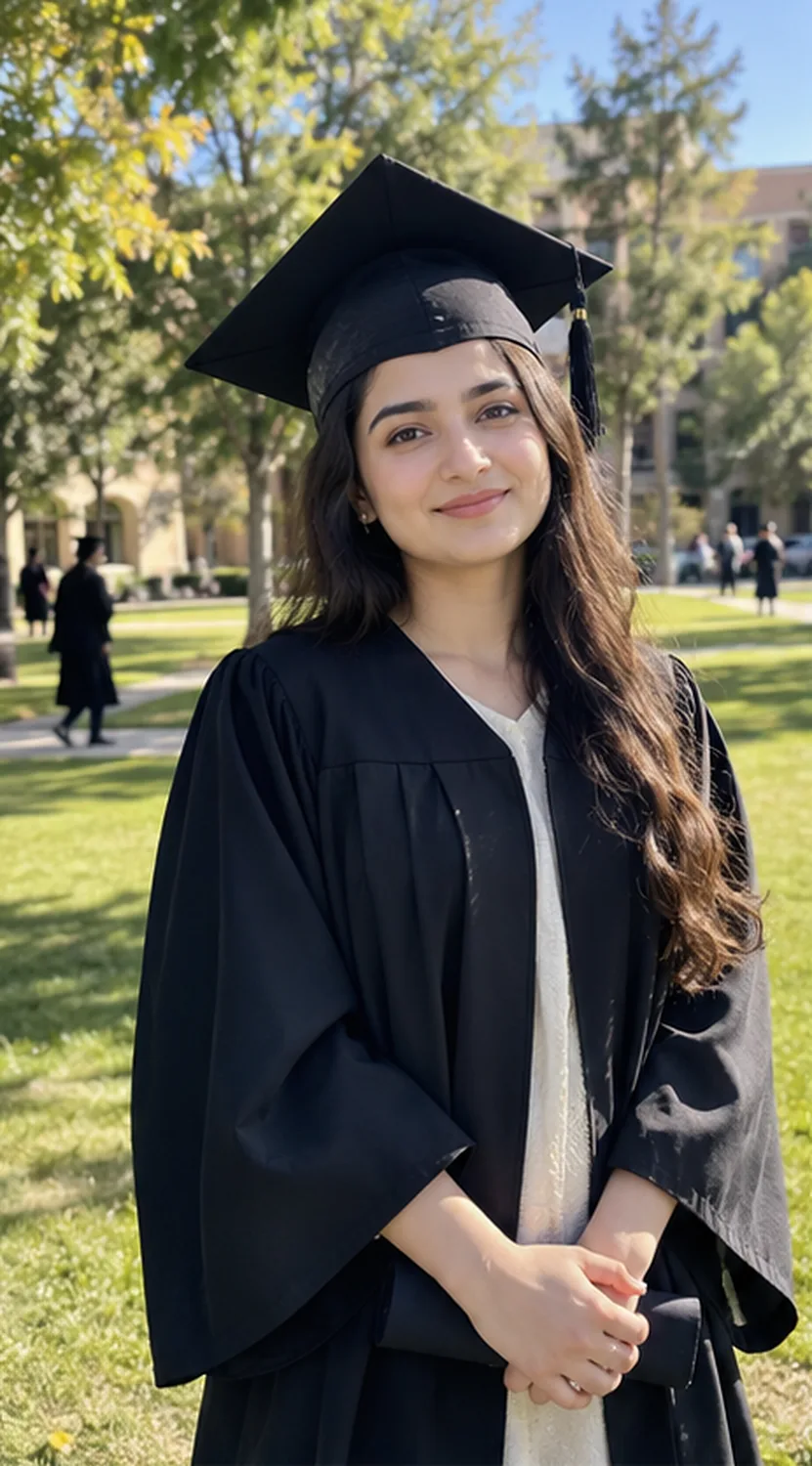
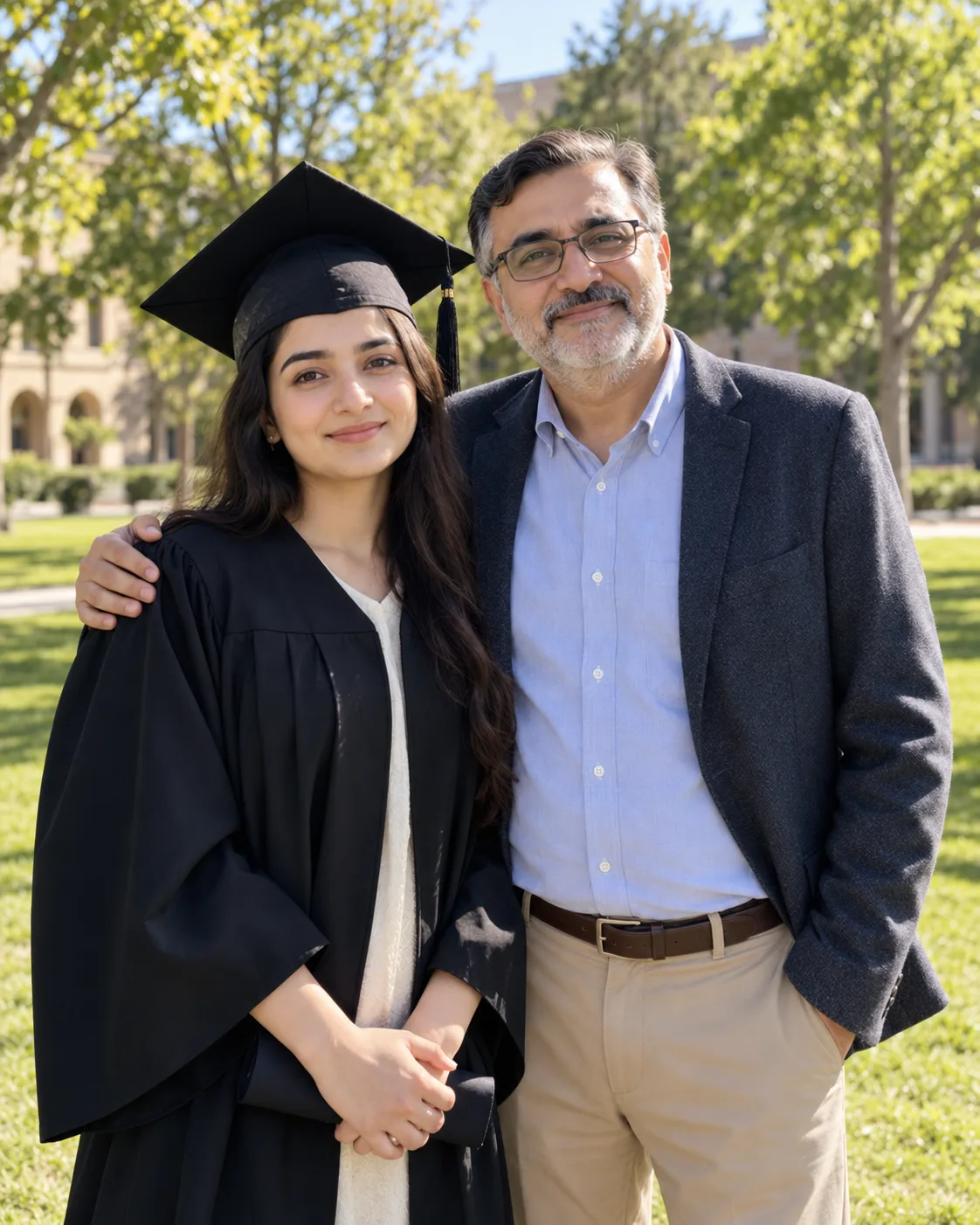
11. Graduation day
The graduate's photo is first and the parent's is second. The gown is plain, with no crest.
Merge the first uploaded photo and the second uploaded photo into one proud graduation day group photo. The first uploaded photo shows the graduate and the second uploaded photo shows their parent. Follow the selected source-preservation settings: identities and facial features. Always keep the graduate's face shape, eyes, nose, lips, hairline, hair, any beard, glasses, or head covering, apparent age, and exact skin tone as in the first uploaded photo, and the parent's exactly as in the second uploaded photo. Treat them as two separate people; do not blend, swap, beautify, slim, de-age, or lighten either face, and keep natural skin texture. Dress the graduate in a plain black graduation gown and cap with no crest or insignia, and keep the parent's own outfit. If group arrangement and pose are not preserved, stand them side by side, the parent's arm around the graduate, both smiling at the camera, at realistic relative heights. Light both with the same bright daylight and matching shadows. Apply bright neutral color grading. Replace the background with sunny campus lawn with trees and softly blurred academic buildings, keeping clean edges around hair and clothing. Do not add extra people, text, lettering, or logos. Compose for 4:5 Portrait without cropping either face.

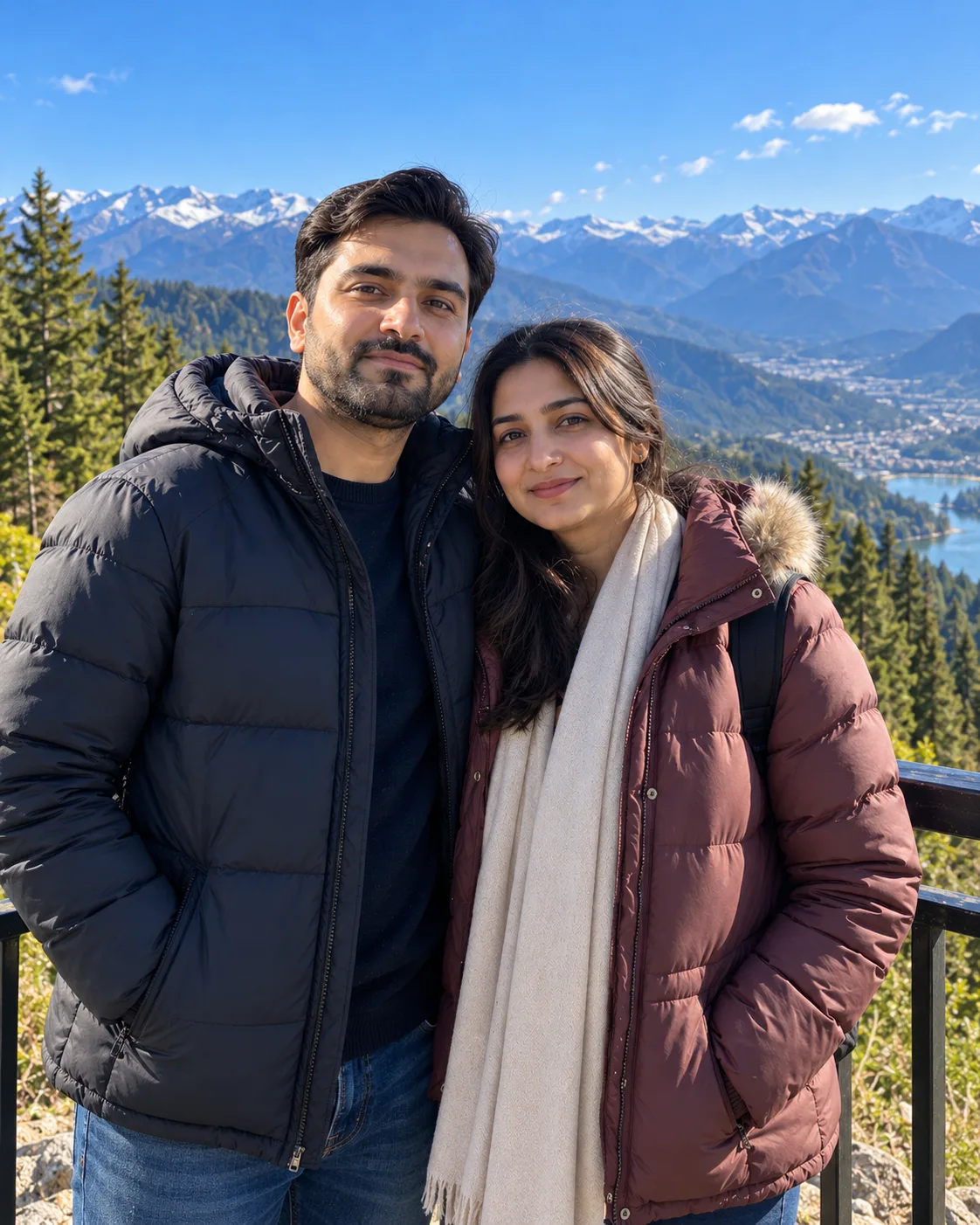
12. Mountain viewpoint
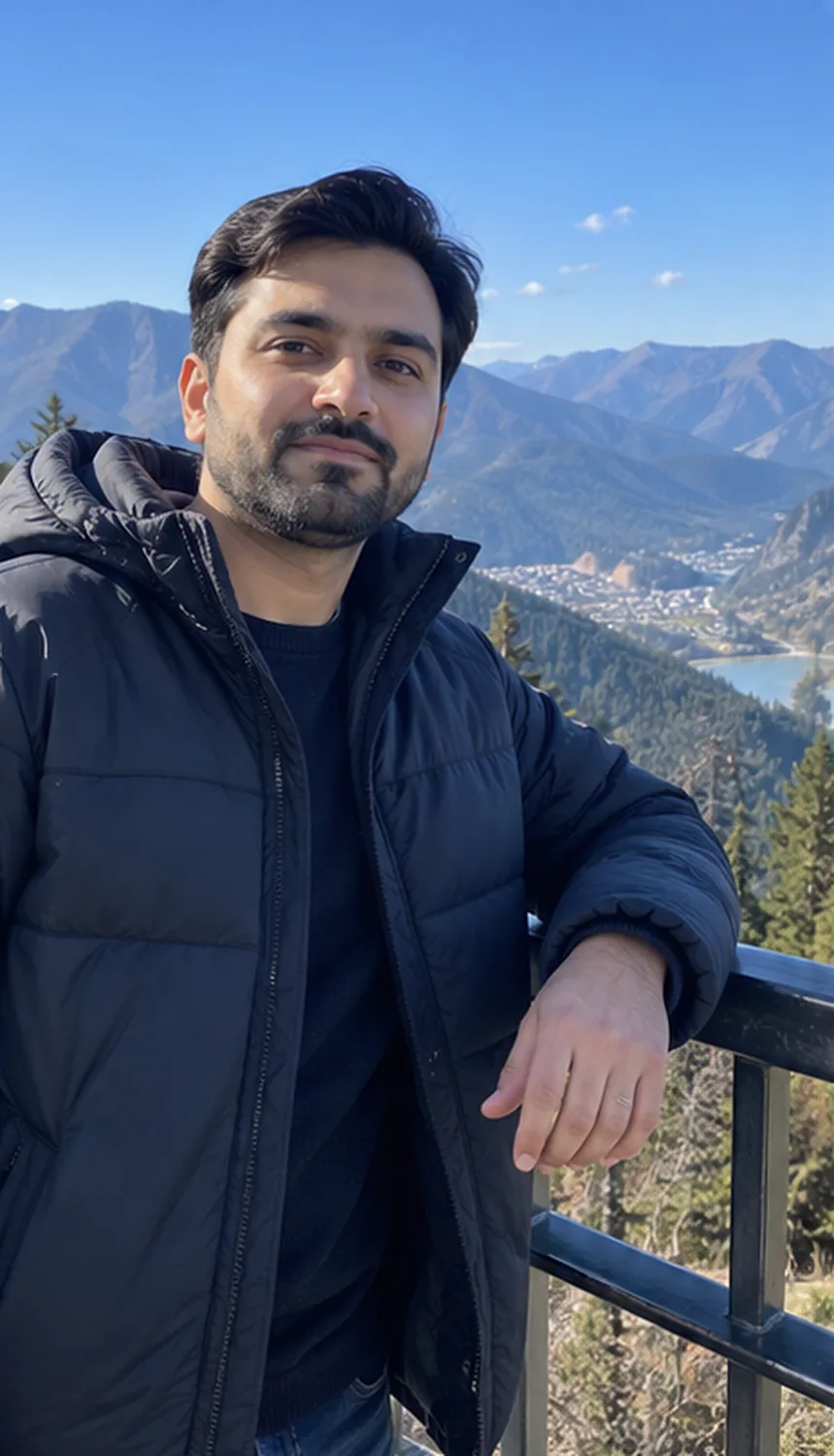
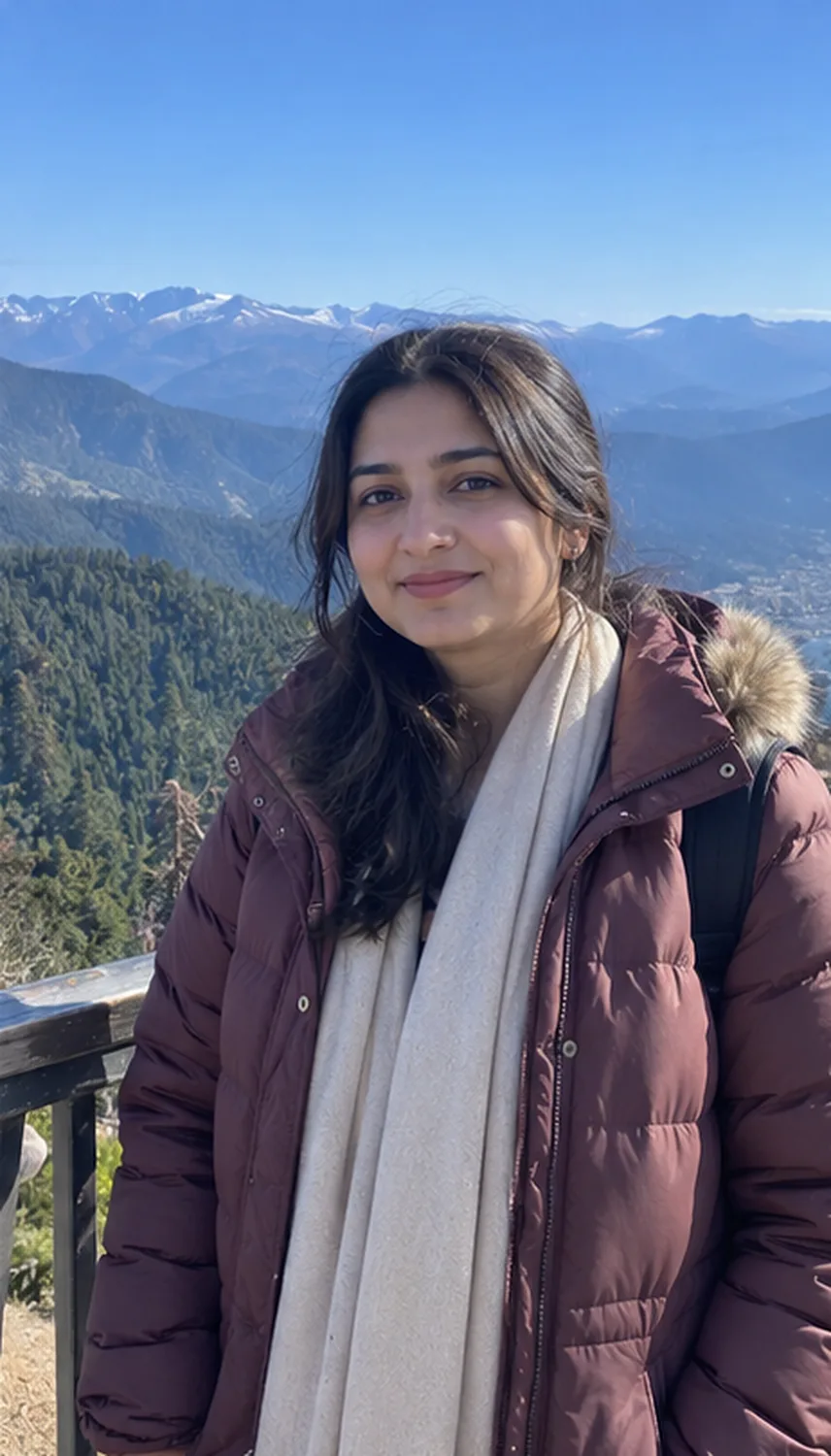
A travel merge: both people in plain warm jackets at one railing, with the same daylight on both faces.
Merge the first uploaded photo and the second uploaded photo into one natural travel group photo of a couple at a mountain viewpoint. The first uploaded photo shows person A and the second uploaded photo shows person B. Follow the selected source-preservation settings: identities and facial features. Always keep person A's face shape, eyes, nose, lips, hairline, hair, any beard, glasses, or head covering, apparent age, and exact skin tone as in the first uploaded photo, and person B's exactly as in the second uploaded photo. Treat them as two separate people; do not blend, swap, beautify, slim, de-age, or lighten either face, and keep natural skin texture. Dress both in plain, unbranded warm jackets over their own clothes, keeping any head covering. If group arrangement and pose are not preserved, stand them side by side at a railing, smiling at the camera, at realistic relative heights. Light both with the same crisp daylight from one direction and matching shadows. Apply bright sunlit cinematic outdoor color with vivid sky blue, warm golden skin highlights, deep navy tones, creamy whites, and fresh natural greens color grading. Replace the background with mountain viewpoint with pine trees, a green valley, and distant snowy peaks, keeping clean edges around hair and clothing. Do not add extra people, text, lettering, or logos. Compose for 4:5 Portrait without cropping either face.
If the merge looks wrong
Send these in the same chat. They are follow-ups, not new style pages.
Fix mismatched lighting
The two people look lit differently. Keep both faces and the background exactly as they are, and relight the whole image with one consistent light source from the left: same brightness, warmth, and shadow direction on both people.
Fix scale and height
The sizes look wrong. Keep both faces and the background the same, but make the scale realistic: one person about a head taller than the other, both at the same distance from the camera, feet on the same ground level.
Fix blended or swapped faces
The faces have been mixed. The person from the first photo must match that photo exactly, and the person from the second photo must match that photo exactly. Restore each face separately, keep their natural skin tones, and do not change anything else.
Fix a pasted-on look
How to blend two photos in Gemini when someone looks cut out: ask for matching edges, shadow, color, and grain.
The second person looks cut out and pasted in. Keep both faces the same, and blend that person naturally into the scene: soft edges around the hair, a matching shadow on the ground, and the same color grade, grain, and sharpness as the rest of the photo.
For more face fixes, see How to Keep Your Face the Same in Gemini.
FAQ
How do I merge two photos in Gemini?
Attach both photos in one message, then paste a prompt that names each photo, describes the scene, and says to keep both faces exactly the same. Start with the riverside prompt. Fix problems with a short follow-up in the same chat.
What is a good Gemini prompt to combine two photos of a couple?
Use the riverside prompt for one shared scene, or the keepsake frame when you want to combine two photos in one frame without changing either original.
How do I add someone to a group photo?
Upload the group photo first and the missing person's photo second. The add-a-person prompt places them at the right end and matches their size and light.
Can ChatGPT merge two photos too?
Yes. Upload both images in one message and number them. The cafe window prompt is written as a longer list, which ChatGPT follows closely.
How many people can one merge include?
Keep it to five people or fewer in one result. For a larger family, merge a smaller group first, then add someone in a follow-up.
More on AI Prompt Grid
- Retro couple, with its own 1980s title: Two Photos, One 80s Couple
- Diwali separate photos, with that page's own title: Separate Photos Couple
- Festive: Diwali Couple AI Photo Editing Prompts. Only have separate photos? Combine them there, then use this guide for other merges.
- Open any prompt above with Customize this prompt to change the backdrop, the crop, or whether the pose stays.
AI tools change often. If a prompt stops working the way it is described here, email hello@aipromptgrid.com or use our contact page.